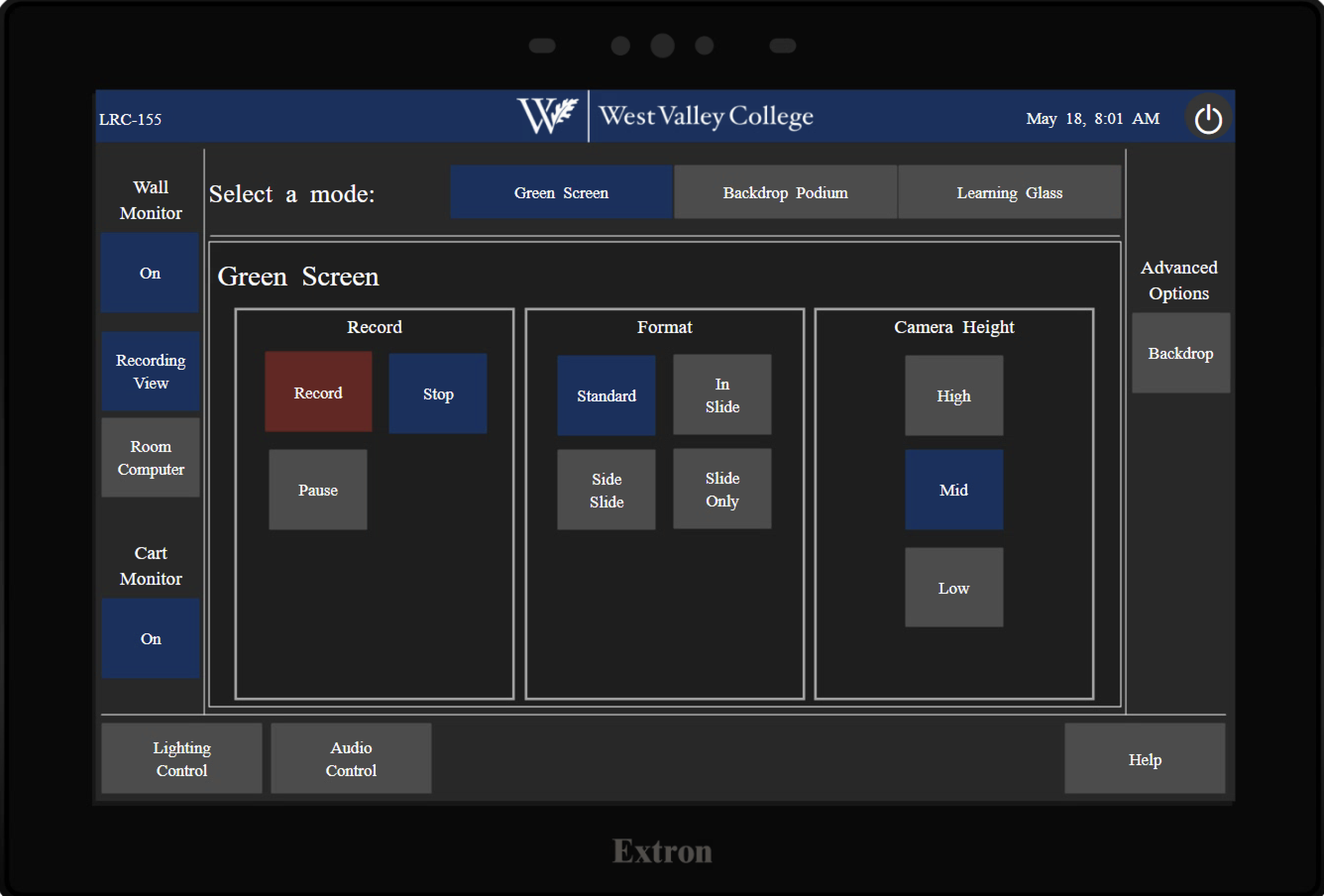
Green Screen mode sets the system up to record you in front of a virtual background.
Controls
- Record / Stop / Pause — Recording controls.
- Format — Choose how you and your slides/computer content are composited:
Mode Description Standard You in front of the selected background, full frame. In Slide You appear inside/over your slide content. Side Slide You and your slides side by side. Slide Only Records only the computer/slide content (no camera). - Camera Height (High / Mid / Low) — Adjust camera framing.
- Advanced Options → Backdrop — Opens the background selection popup.
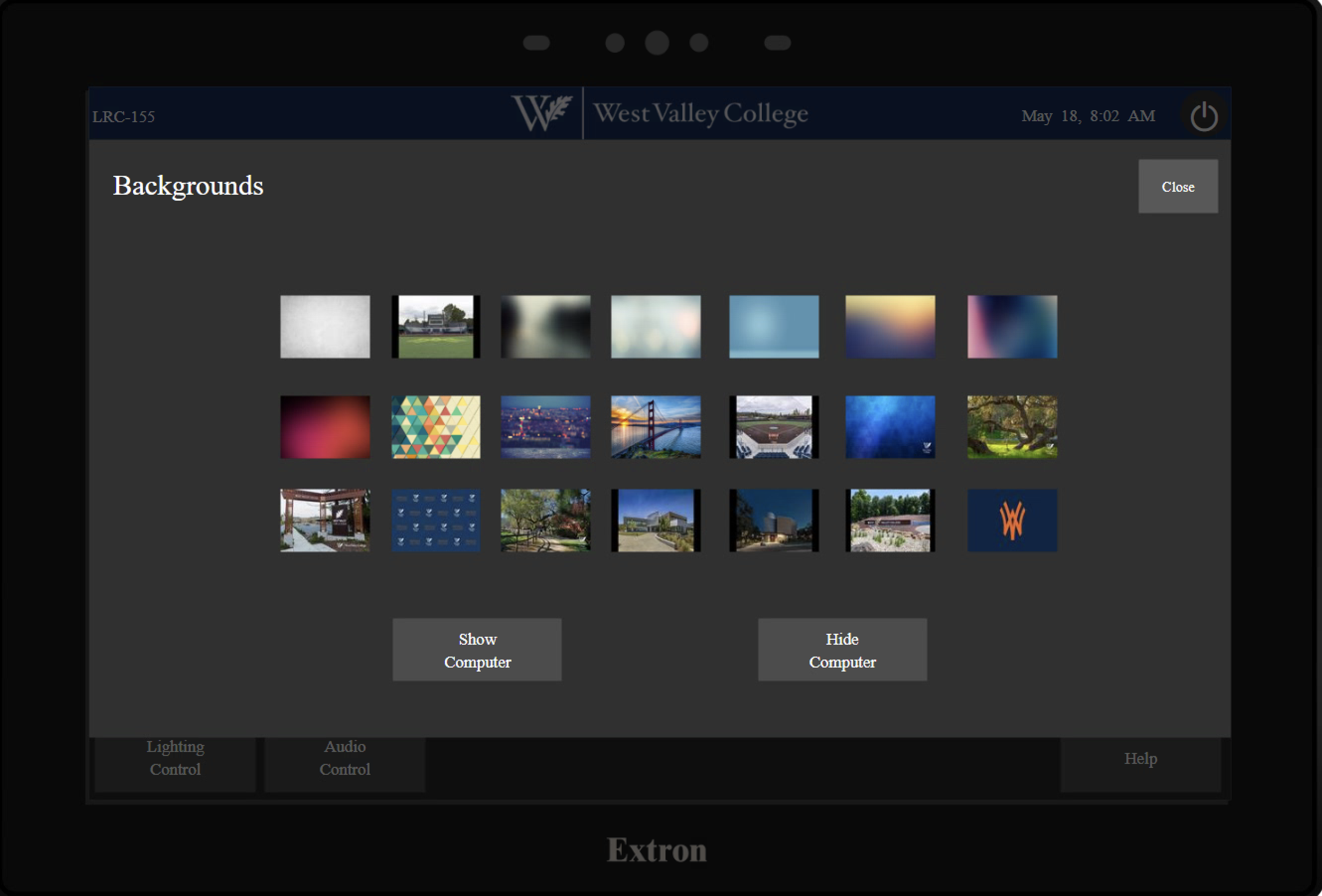
Choose a Background
Tap Advanced Options → Backdrop to open the Backgrounds menu:
- Tap any thumbnail to set it as your virtual background (solid colors, gradients, campus photos, and West Valley branded options are available).
- Use Show Computer / Hide Computer to toggle whether your computer content appears in the shot.
- Tap Close when finished.
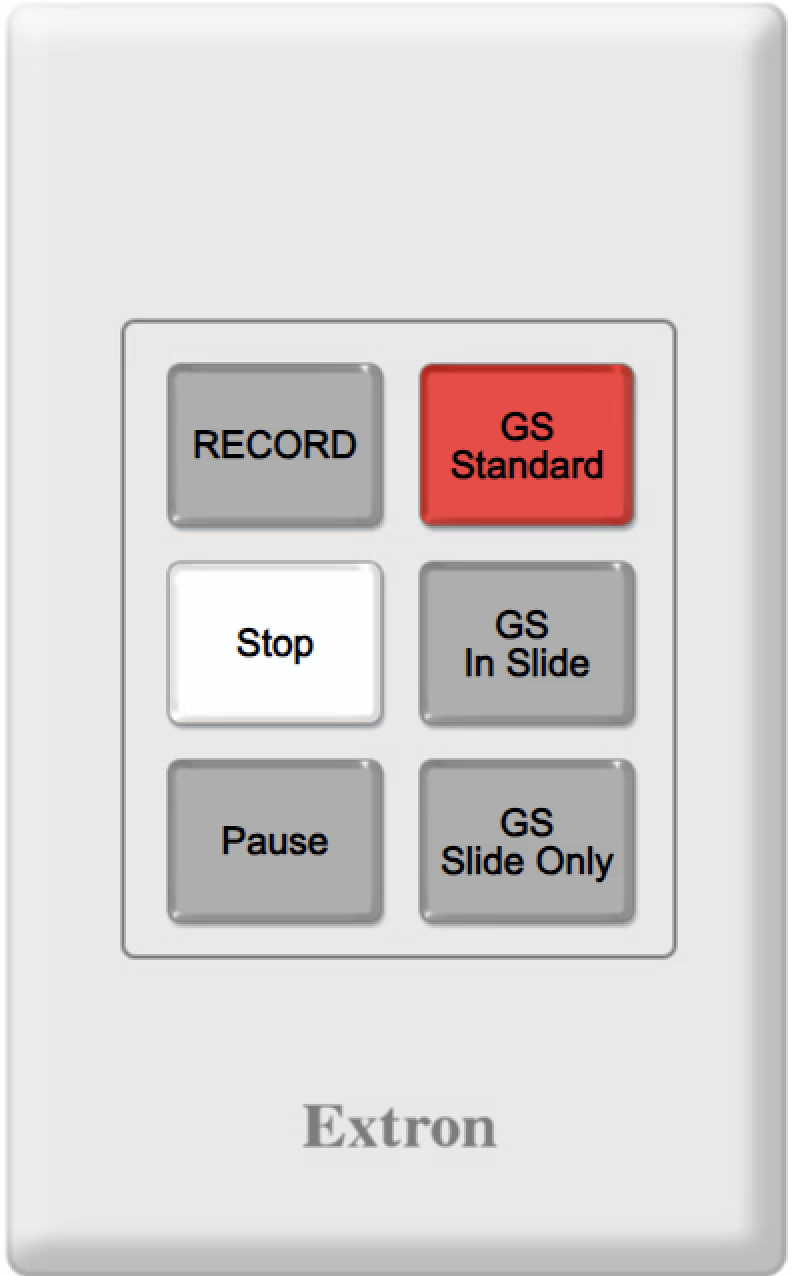
Green Screen Keypad
The tabletop keypad near the green screen provides quick access to the most common controls:
- RECORD / Stop / Pause — Recording controls (Stop lights up while recording).
- GS Standard / GS In Slide / GS Slide Only — Quick format switching. The active format is lit.