
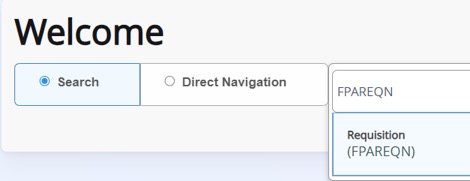
From the Welcome screen, type FPAREQN in the search bar.
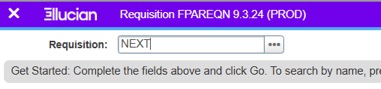
On the following screen in the Requisition field, type NEXT and select GO
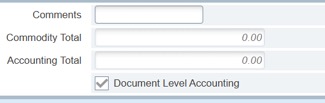
**If you want to enter multiple FOAP’s, you MUST uncheck Document Level Accounting, BEFORE proceeding.
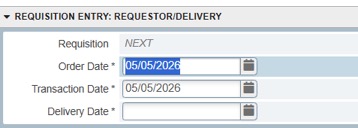
Select the delivery date and click Next Section (Alt+Pagedown)
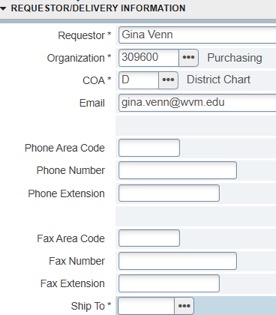
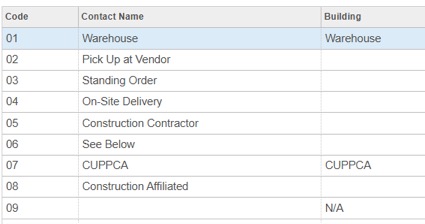
Complete the ship to information by clicking on the ellipsis icon (…)
Choose one of the following, select OK.
- 01 – Warehouse
- 02 – Pick Up at Vendor
- 03 – Standing Order
- 04 – On-Site Delivery
- 05 – Construction Affiliated
Click Next Section (Alt+PageDown)
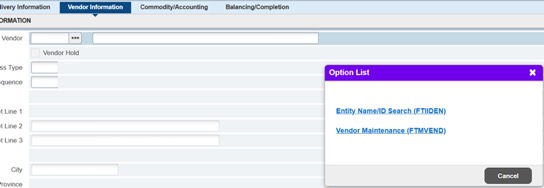
If you don’t know the vendor G0#, you can select the ellipsis icon (…) to the right of the vendor box, then select FTIIDEN
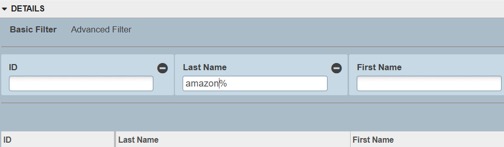
Type in the vendors name in the Last Name field, with % at the end
Select GO
You want to make sure you always select the vendor that has a GO#. In some cases, the vendors’ name will change, which is ok as long as the G0# is the same.

You can double click on the G0# or highlight and click select.
You will then return to the Vendor Information screen.
When returning to the Vendor Information screen, you will then upload your backup documents.
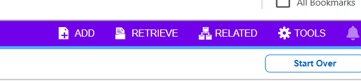
Select Add
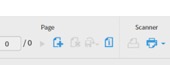
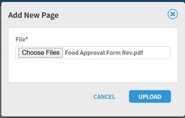
Select Add page and then choose the file you want to upload. You can upload multiple files at once. Once files are selected, hit Upload. Then Save.
Backup documents must be in PDF format
*What are backup documents
- Quote, Estimate or Invoice from the vendor
- Scope of Work from the vendor including price, date and time of event
- Agreement or Proposal from the vendor
**Outside catering MUST have the following items as backup.
- Quote or Invoice
- Certificate of Insurance with General Liability (current at time of event, not expired)
- Business Certificate (current at time of event, not expired)
- Health Permit (current at time of event, not expired)
- Michael Robins approval (must have prior approval before submitting your req)
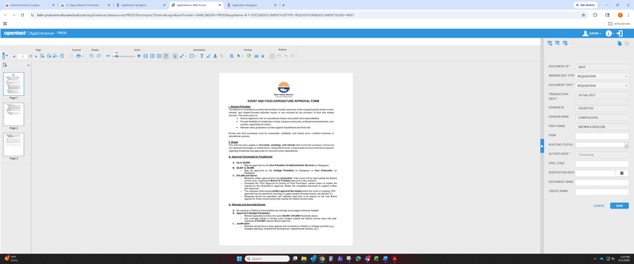
Please see the Event and Food Expenditure Approval Form.
- We do not need budget information as backup and please DO NOT upload a W9.
- Any kind of service (Repairs, Maintenance, Speaker, Performers) must include an RFC. If they are an Independent Contractor, we must also have an Independent Contractor Checklist.
The only time we do not need backup is when you are using an Open PO.
What is considered and Open PO.
Amazon, ODP, Dry Cleaning, Safeway, Thomas Cuisine, Alpha Graphics, Konica
Once you have saved your backup documents, you can close your screen and should return to the Vendor Information screen.
DO NOT enter anything else other than an email address. Anything else will cause the PO to not print and be sent to the vendor.

Select Next Section (Alt+PageDown)
You should now see your Requisition# on the top left.
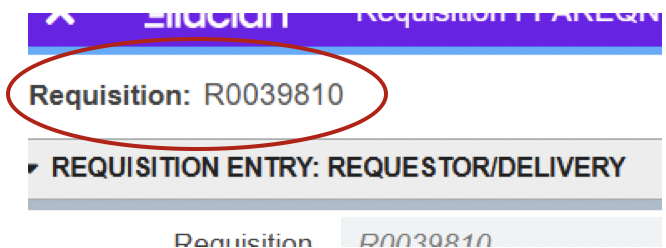
You will need to complete the following areas
- Description – Be as specific as possible.
- U/M
- Tax Group – Will always default to CAD. If you have an Open PO, you can change it to D00.
- Quantity
- Unit Price
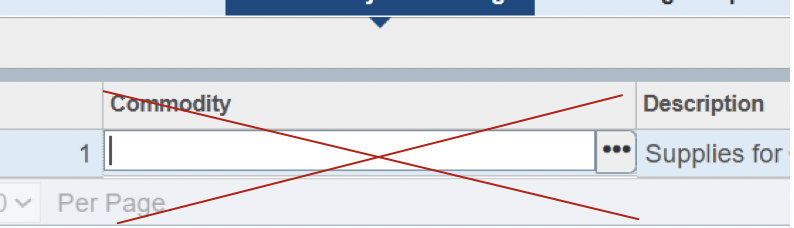
DO NOT enter anything in Commodity section

If you are creating a req for an Open PO. Please make sure you specify that in the description.
- *Open PO for Office Supplies or Open PO for dry cleaning services for Police uniforms
- **Make sure to tab all through your line items!
For Description, put as much detail as you can. There is limited character space. If you need more space, you can do so by selecting Related on top right, then Item Text.
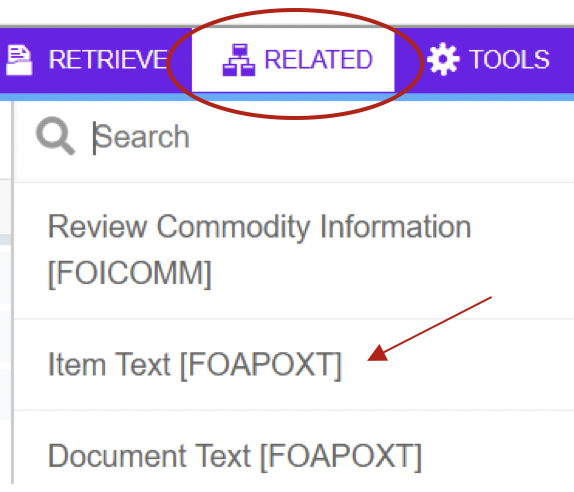
Procurement Text Entry Window will populate.
Click GO
Next you can enter any additional information that is needed. If you run out of space, you hit your down arrow on your keyboard for the next line. There is limited
Additional text will be printed under the line item you selected.
What you put here will print on your PO for the vendor to see.
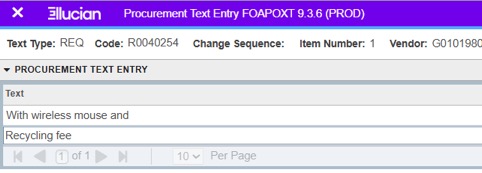
When you are done, save and close the window.
**When saving you should see “Saved Successfully” on the top right.
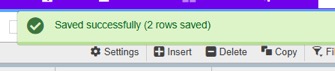
You should now be back at Commodity/Accounting
If you need to add multiple lines, you can hit your down arrow on your keyboard.
There is a 20-line limit per requisition (including additional text). If you have more than 20-line items, you will need to submit 2 separate req’s or please reach out to me for guidance.
Make sure to tab all throughout the line items. If you do not tab, it can result in Purchasing not being able to process your requisition.
Select Next Section (Alt+PageDown)
Here you will enter your FOAP.
Once again make sure to tab all through the FOAP.
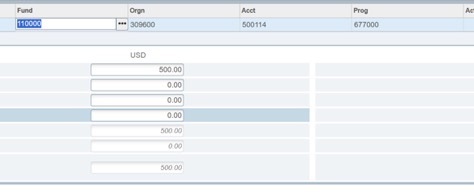
If you are entering multiple FOAPS for one line item, select Insert
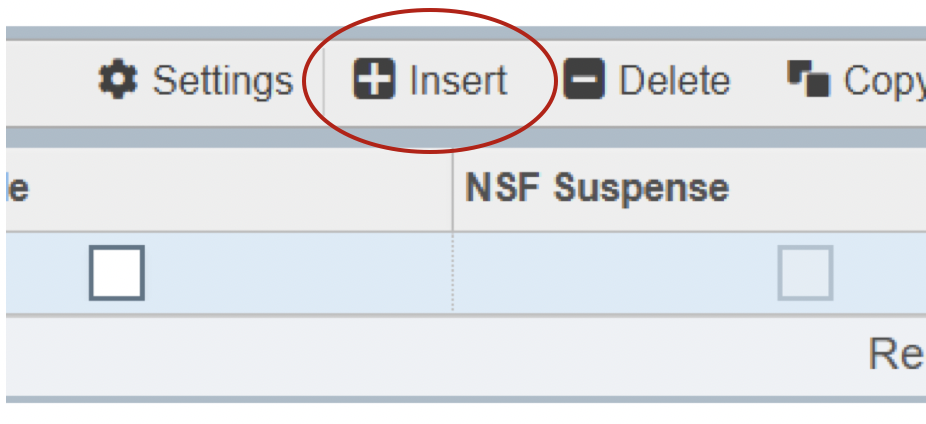
You can enter your second FOAP the same as you did with the first one.
Once complete, tab through all sections.
Select Next Section (Alt+PageDown)
- *If you receive a message that states you do not have enough funds (NSF). Please check your FOAP to verify funds. If funds are available, complete your req. If not, you will need to do a budget transfer.
Last stop before completing your requisition.
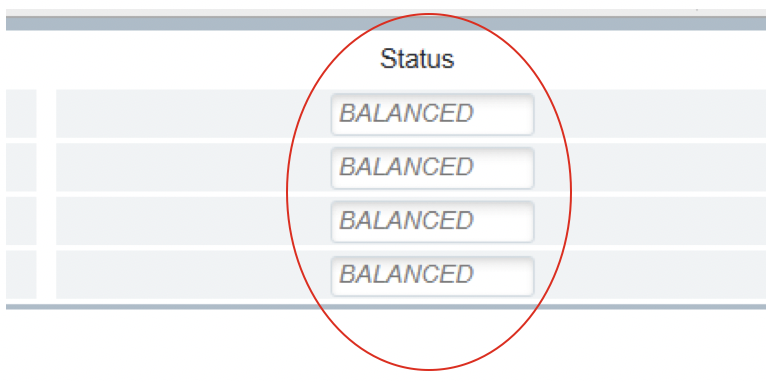
Verify that your Status is Balanced. If everything is balanced, select Complete.
If anything is not balanced, go back up to the Commodity area and tab through all the line items. This should fix the problem.

To locate SSB you want to go to your Employee Portal on the District Website
Select Finance Dashboard > My Requisitions
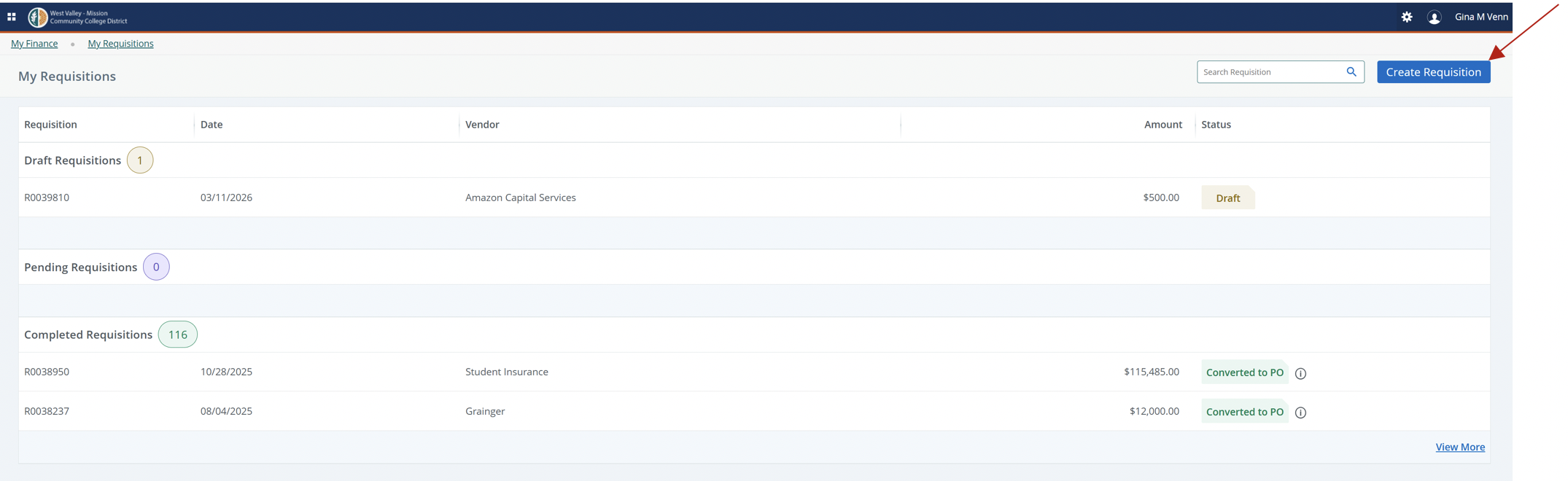
Here you will be able to see all your requisitions that are in Draft, Pending requisitions and your Complete requisitions.
*Pending requisitions will show that they are with the Buyer. This means Purchasing currently has the requisition to process. Please allow 2 days for processing.
If you know that your requisition is going to be in NSF, you will not be able to complete your requisition in SSB. You will need to process your requisition in Banner INB.
Select Create Requisition
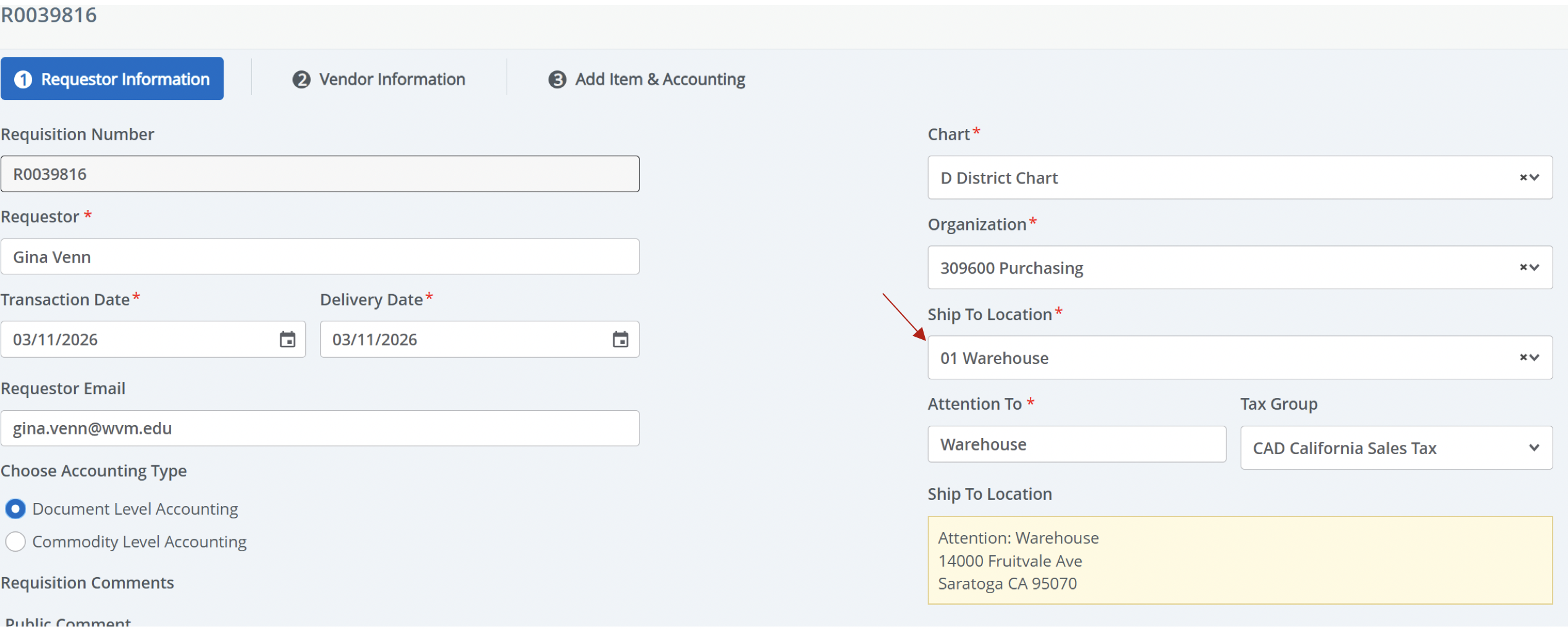
You will need to complete the following areas:
- Delivery Date
- Ship to location
- 01 – Warehouse
- 02 – Pick Up at Vendor
- 03 – Standing Order
- 04 – On-Site Delivery
- 05 – Construction Affiliated
If you have multiple FOAPs you must check Commodity Level Accounting
Select Next when all information is completed
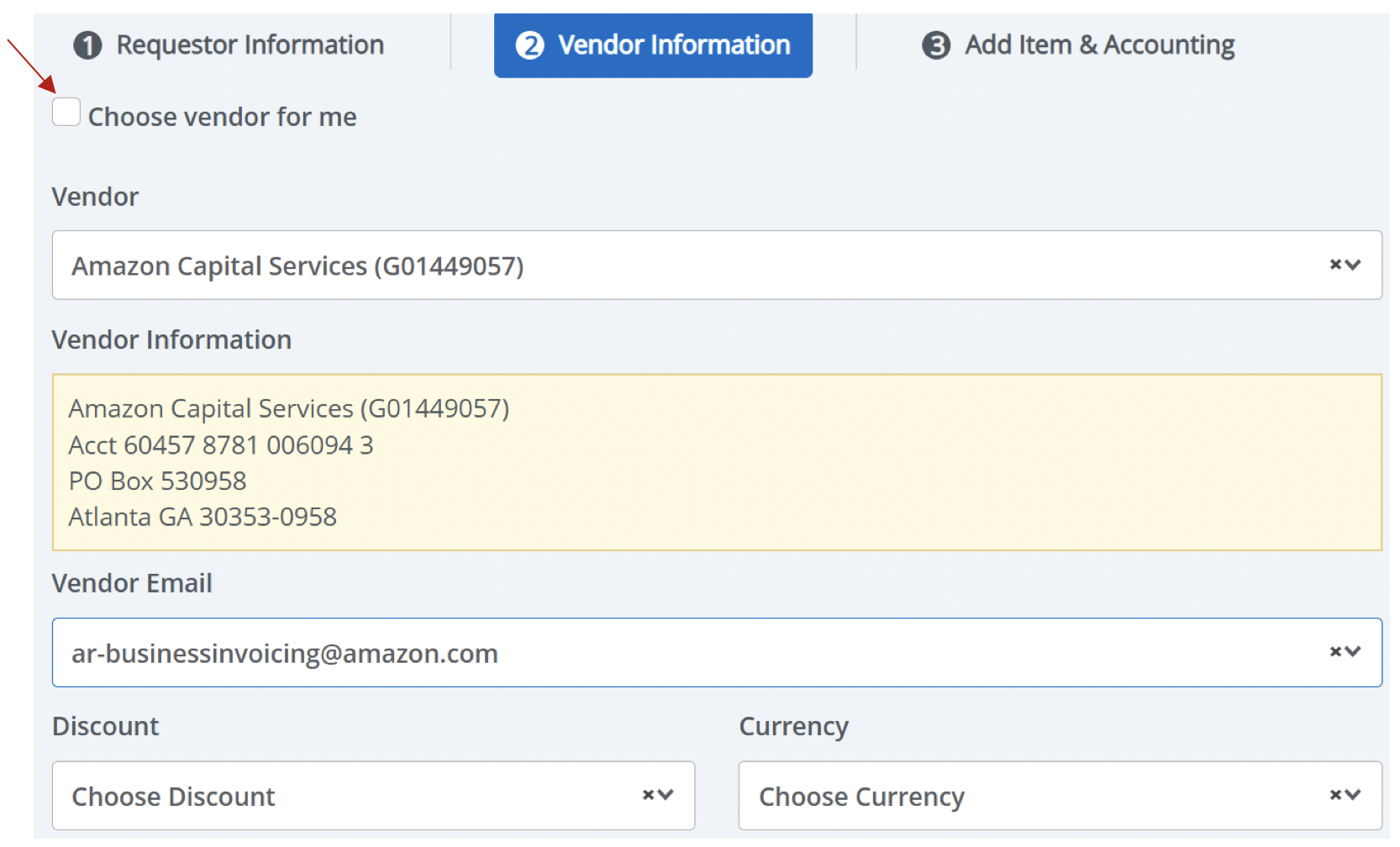
Uncheck, Choose vendor for me
Enter in the vendor’s name
Select the vendor
Currency will always be USD
Enter the vendor's email address (if you have it). DO NOT enter anything else other than an email address. Anything else will cause the PO to not print and be sent to the vendor.
Upload your backup
Select Attachments, top right of screen
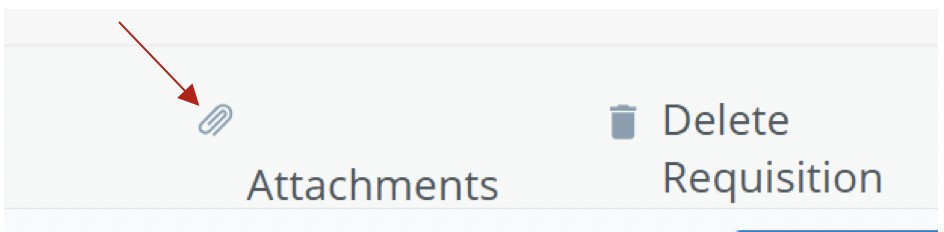
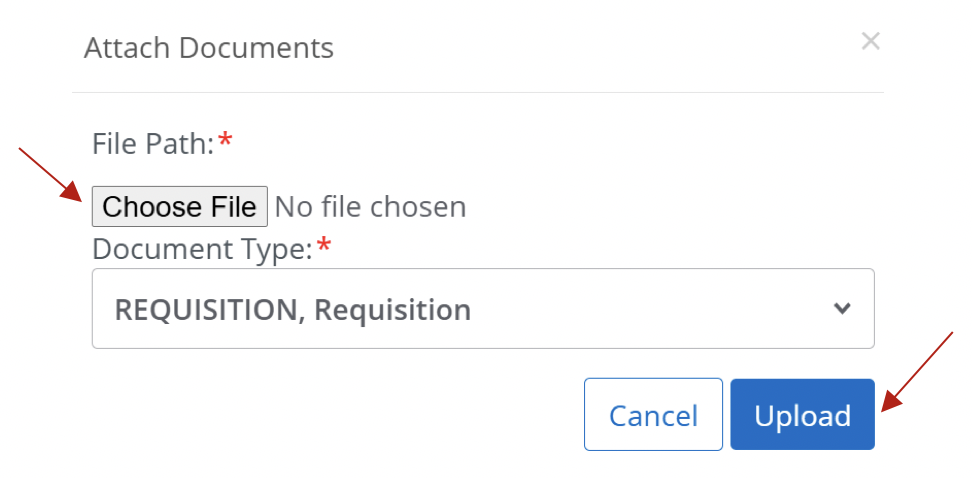
Select Attach File

Choose the file you want to upload
Select Upload
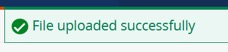
You should now see your PDF file you uploaded and receive a message on the top right, File Uploaded Successfully.

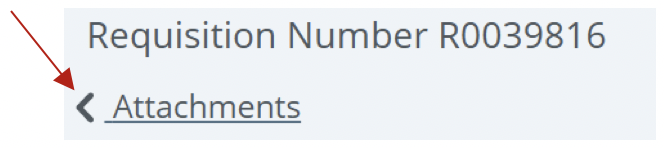
Select Attachments under the Requisition Number to return to the previous screen
Select Next when completed
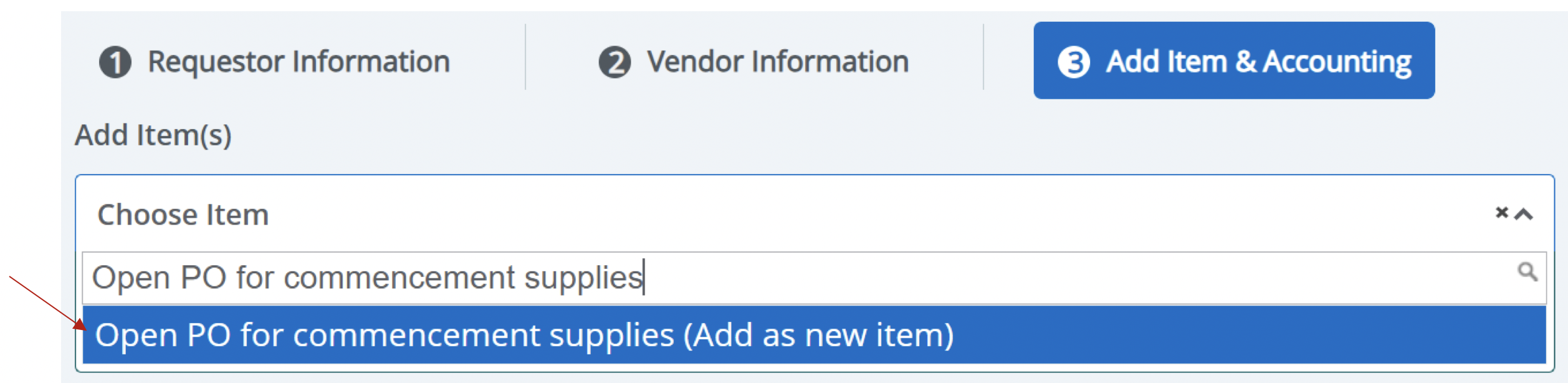
Type in the description of your first item
Select Add as new item
** Always select the option that has, (Add as new item). If you do not see an option, after you type in your description put in a few spaces and it should populate.
Next complete the following areas.
- Unit of measure
- Quantity
- Unit Price
Public Comment is where you enter additional text information or description.
**SSB is different from INB when inputting additional text. You will enter in all your text as one line. Do not push enter to start a new line. This will cause your additional text to be hidden.
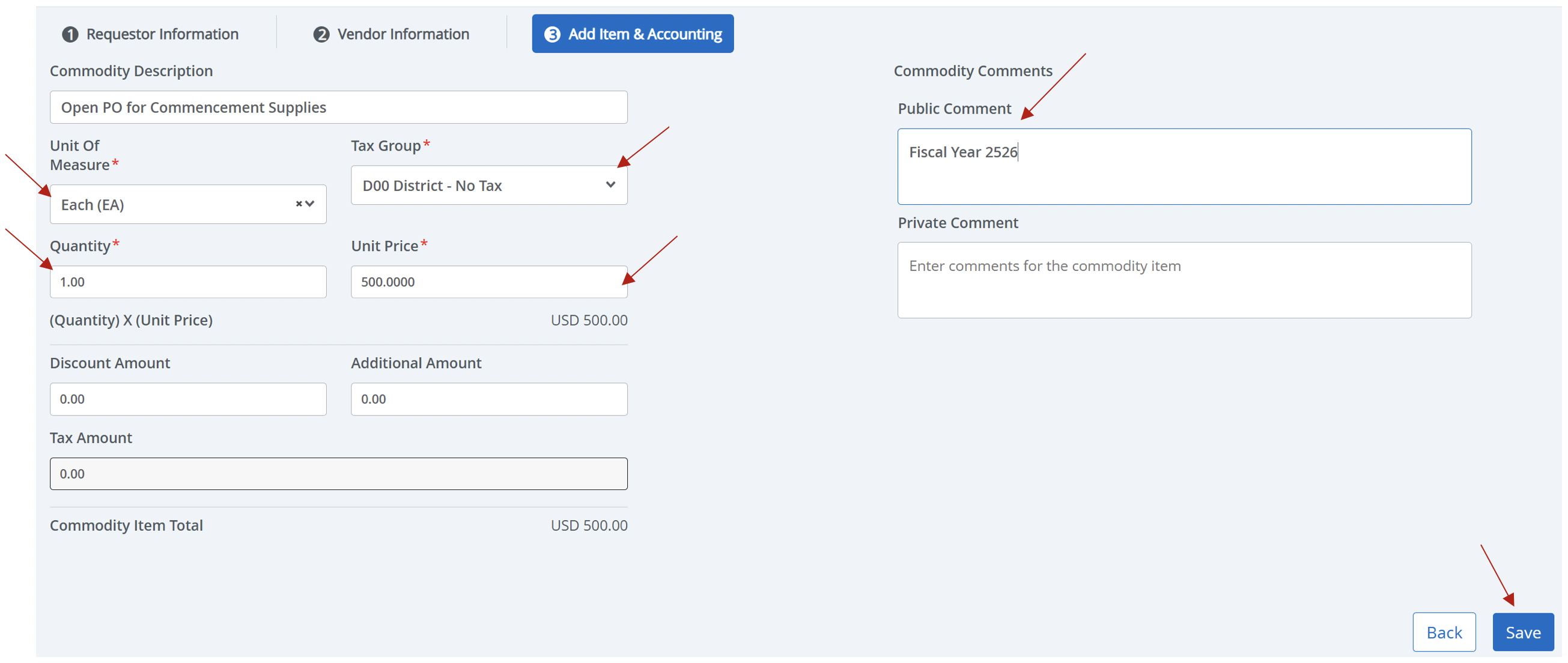
Select Save
Once you save you can then enter more item if needed.
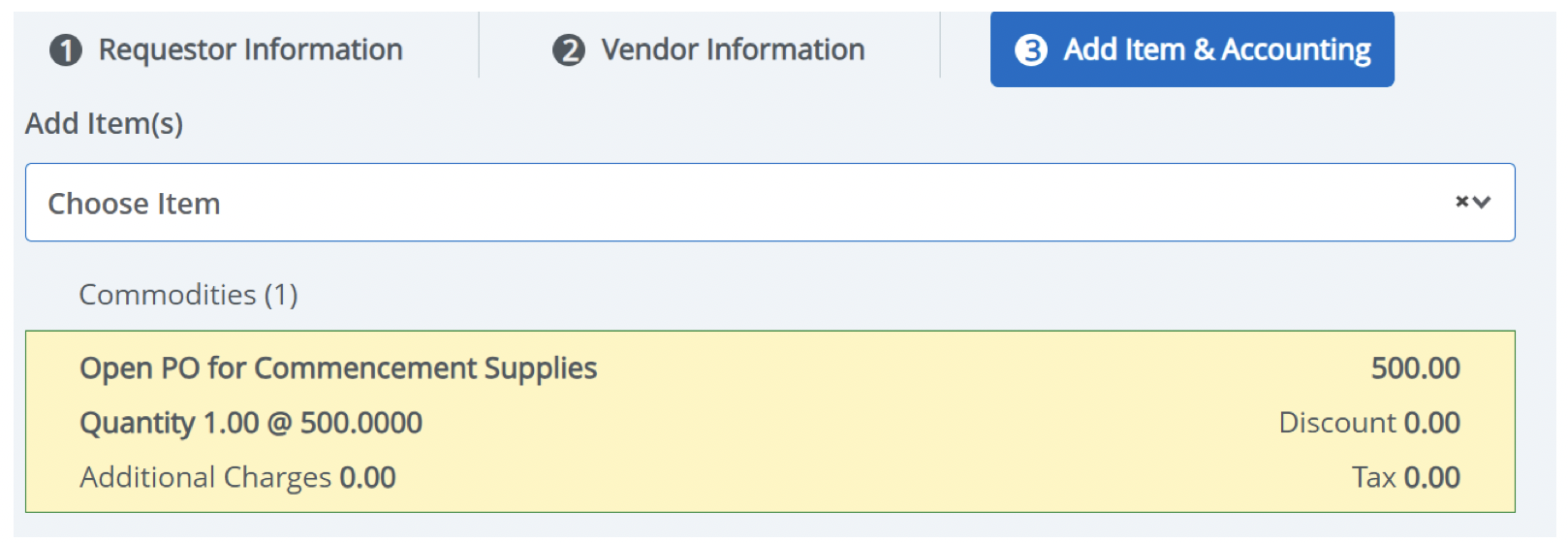
If you only have 1 line item, you can continue to, Add Accounting.
Your next stop will be to add your FOAP
You will need to complete the following areas:
- Fund
- Organization
- Account
- Program
If you are only using one FOAP, you can select Save.
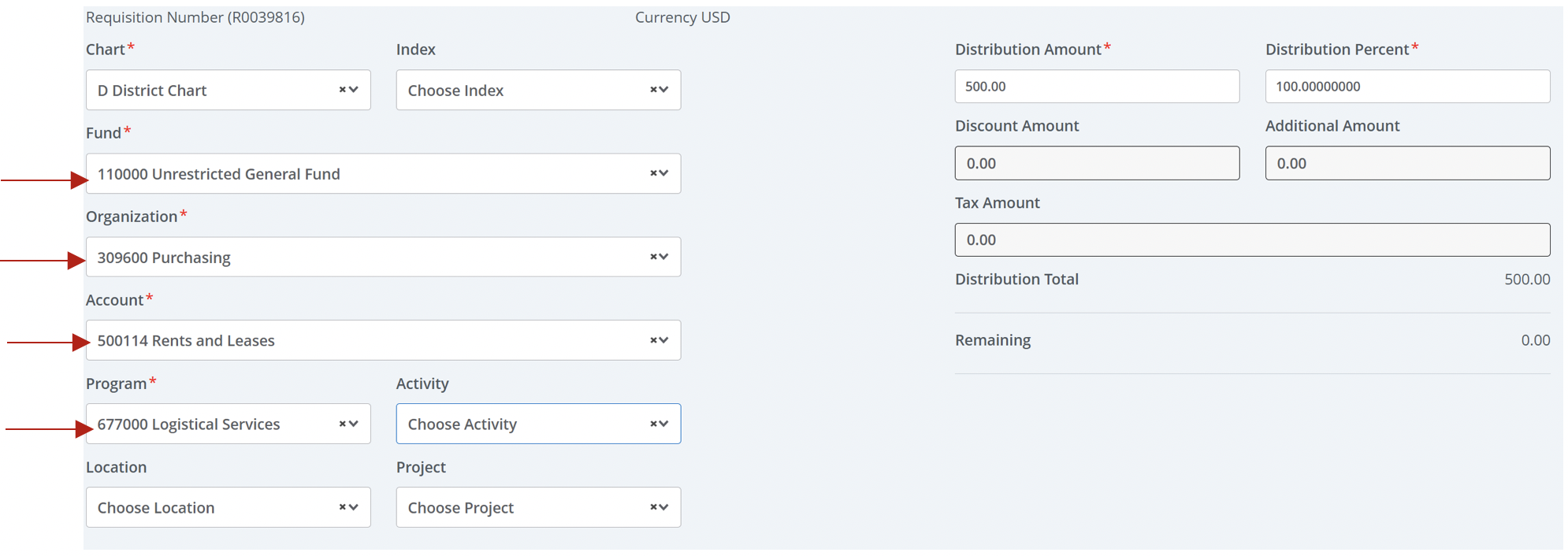
If you are using multiple FOAPs, you will need to select the distribution amount you would like in the first FOAP.
You can either split by Percentage or Amount
Select Split Accounting
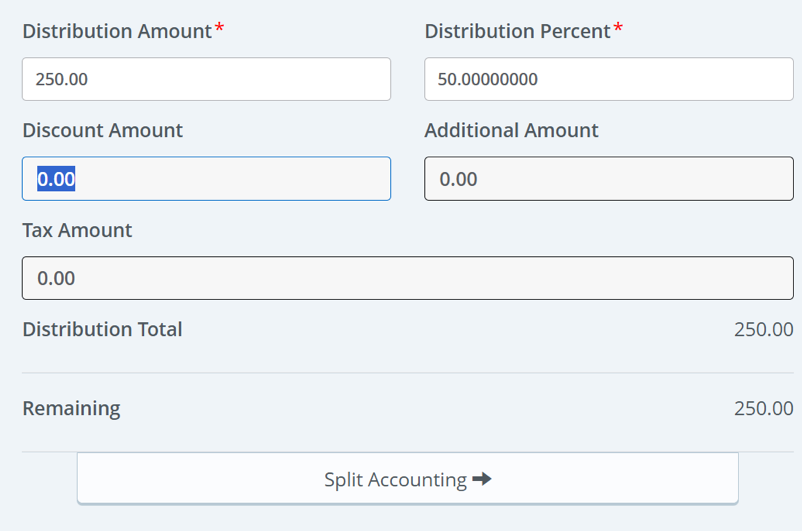
Once you select Split Accounting you will need to add in your second FOAP
Select Save when done with the second FOAP
*If your account is in NSF, you will not be able to continue with submitting your requisition. SSB will not allow you to submit.
You can click Funding on the right to view your FOAPs for verification.
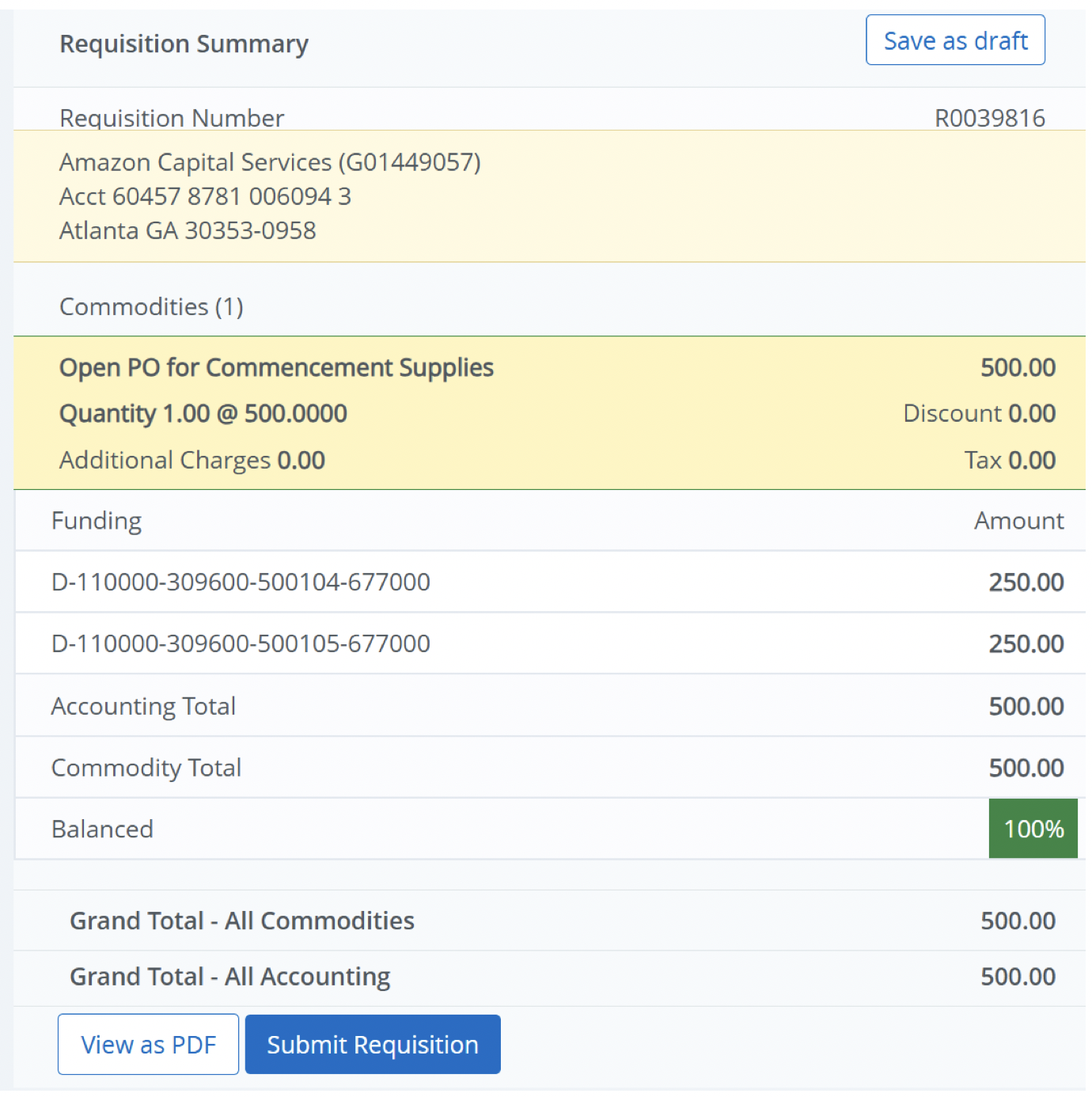
You are now ready to submit your requisition.
What Happens Next
All requisitions need to go through approvals. Once all approvals are completed, Purchasing will print the requisition, assign a PO# and process.
Please give purchasing 2 days for processing.
If there is an RFC/Contract associated with the requisition, we will not process the PO until we have a fully executed contract. Contract execution can take between 30 and 60 days. Advanced planning is required.
Once your PO is created, your PO will print to PDF and is emailed directly to the vendor. The Requestor will also receive a copy.
If you want to know where your requisition is currently, please check in FOAUAPP before contacting Purchasing. Most of the time your requisition will be in someones banner queue waiting for approval.