
From the welcome screen, type in FOAUAPP
- *Selecting the star will put this form in your Favorites on your dashboard
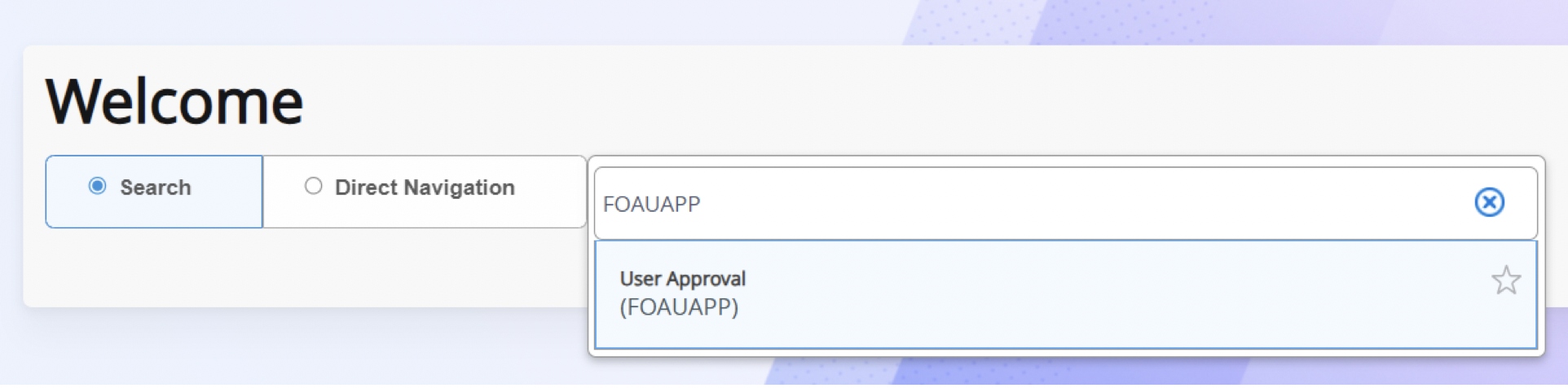
You will now be in User Approval
Your name should automatically populate in the User ID
Select Go
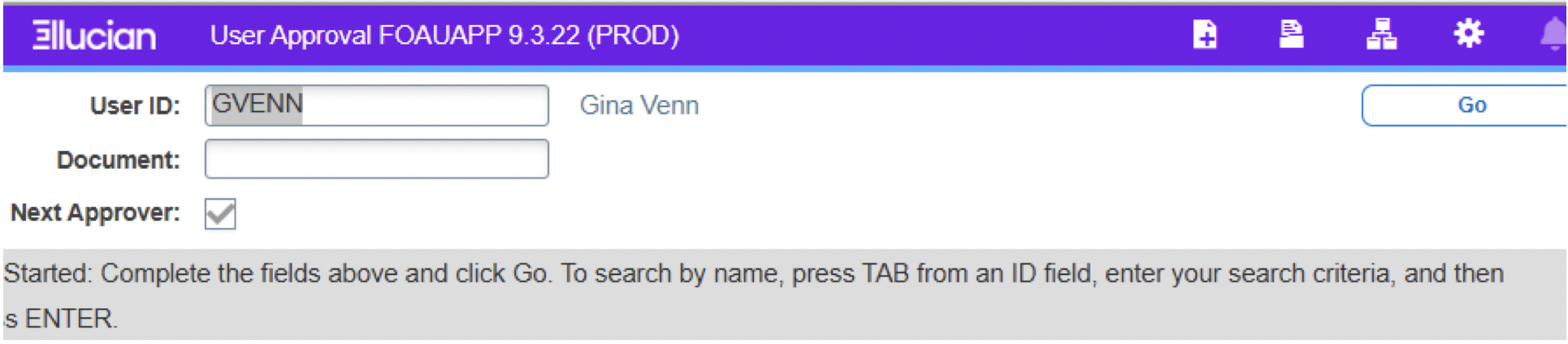
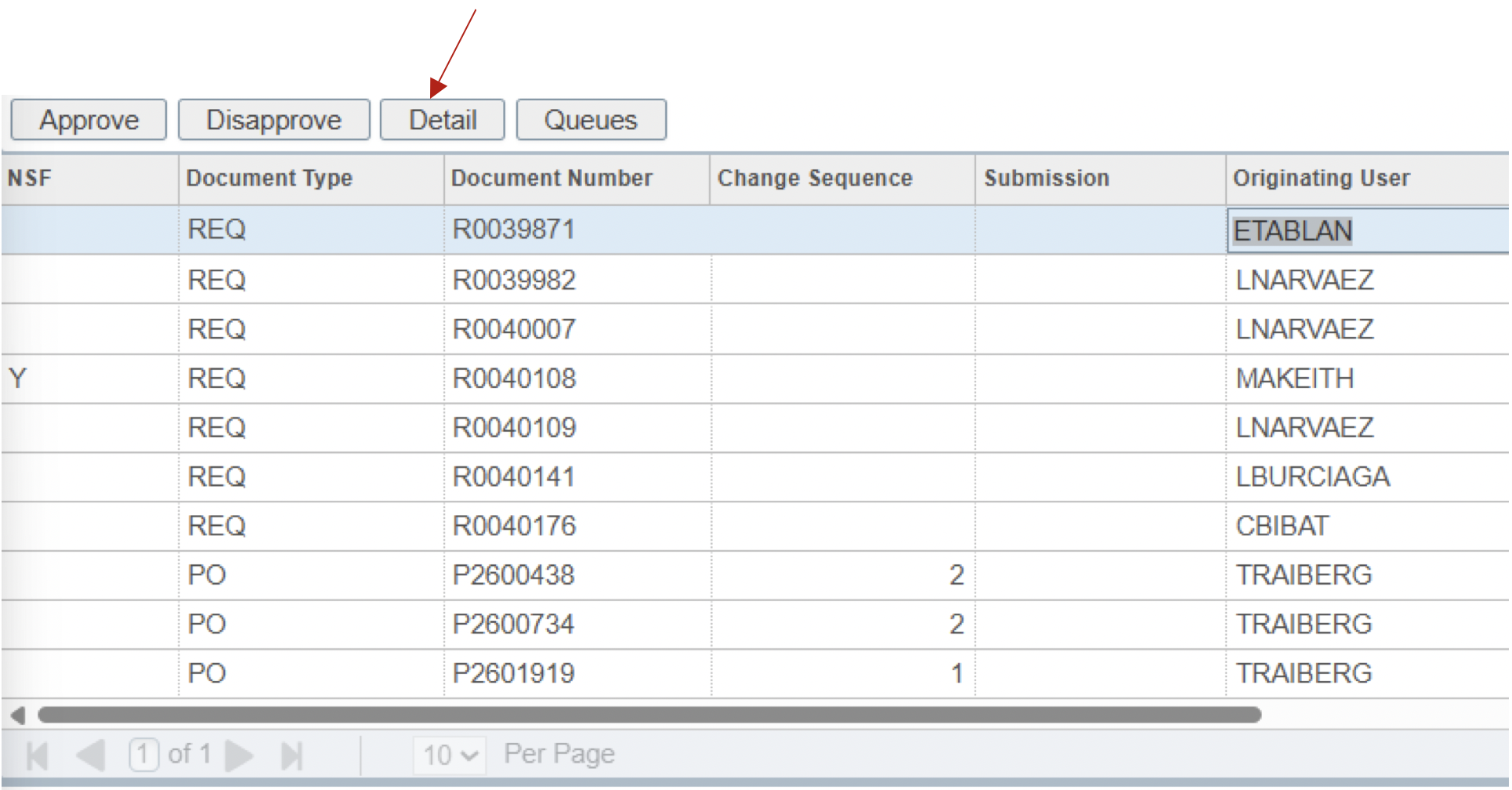
You should see all your items that need to be approved
From this screen you will also be able to see the following:
- NSF
- Requestor/User
- Document number
- Document Amount
Select/Click on the item you want to view.
- The line item will highlight blue.
Select Details
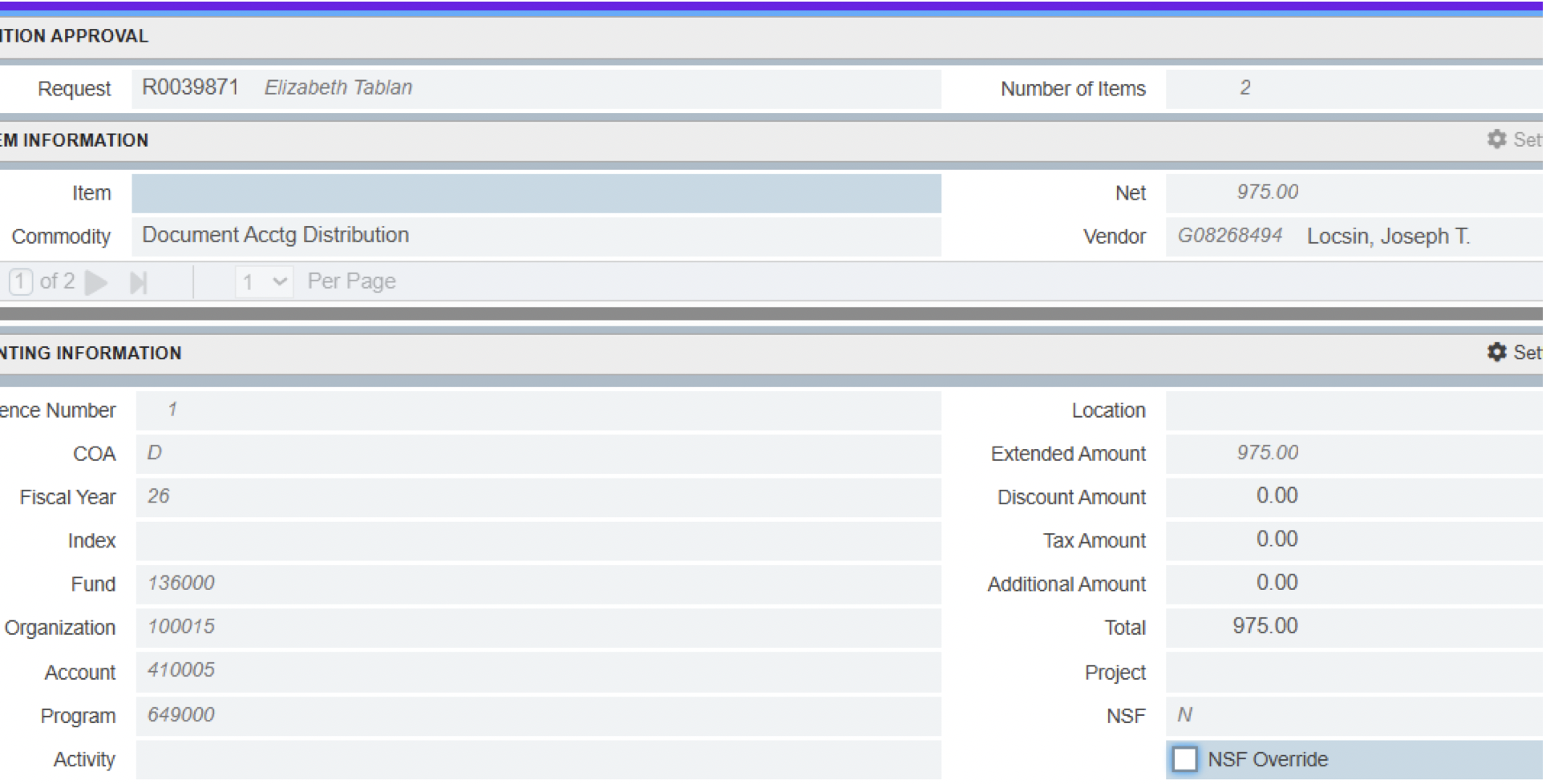
When in the Details screen you will be able to see more detail. You will be able to see the vendor and FOAP information.
As an approver, you want to make sure that the Requestor has uploaded all the necessary documentation.
Select Retrieve from the top of screen
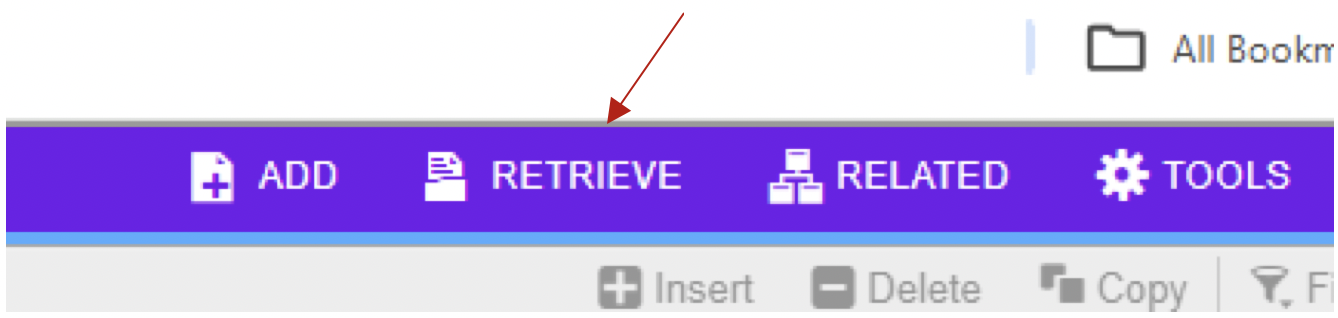
You will be able to see all the backup documents that the requestor has uploaded.
Once you have verified the backup documentation, you can close this screen.
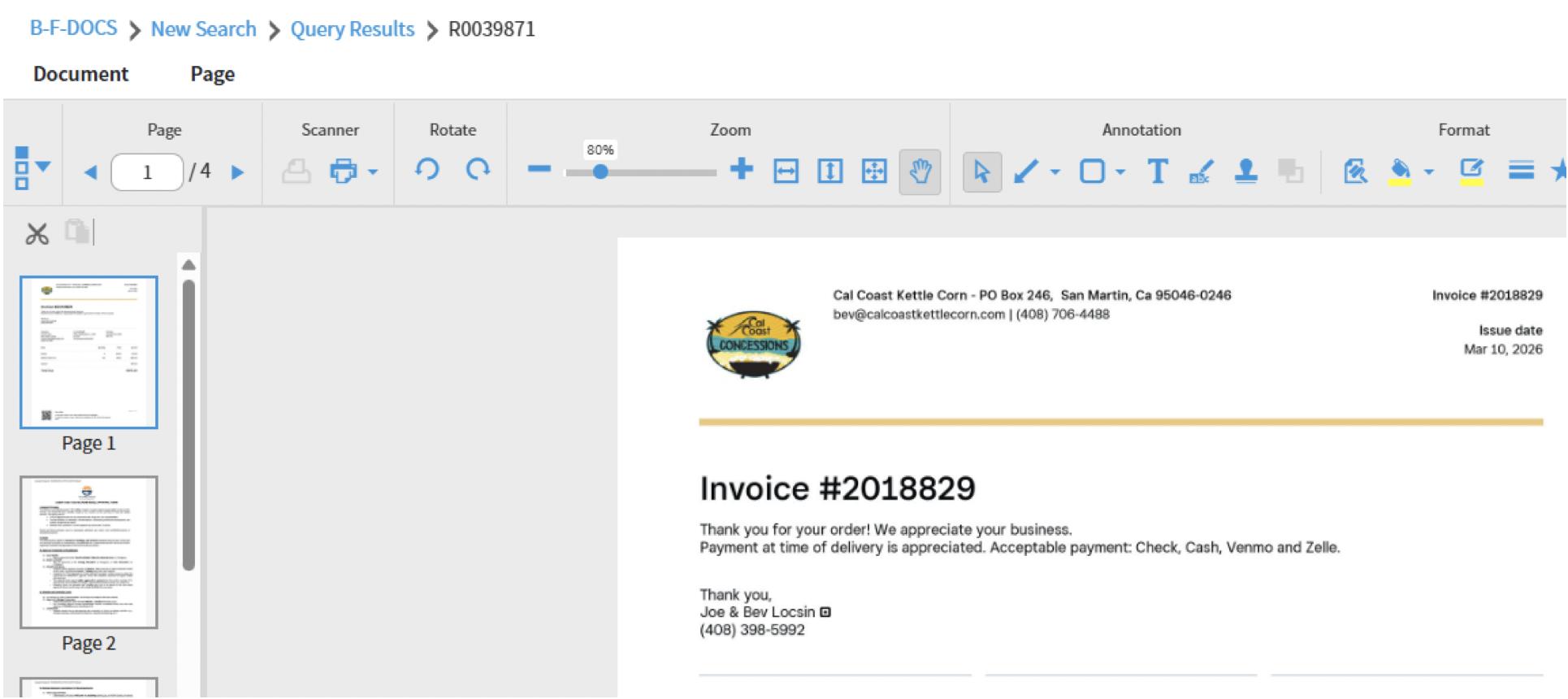
You will be taken back to your Detail screen. If everything is accurate, you can close the Detail screen.
You should be back at the Approver screen and can select Approve on the top left
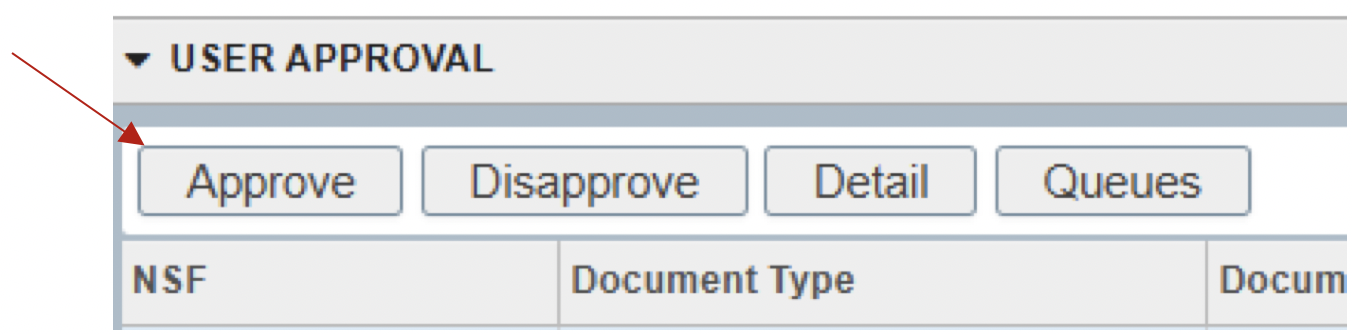
If for some reason you need to Disapprove, selecting this will send the document back to the Requestor/User.
- *The document will need to be rerouted though approvals again if resubmitted.
When you Approve a document, it will be removed from your queue and move into the next approvers queue.
To locate SSB you want to go to your Employee Portal on the District Website
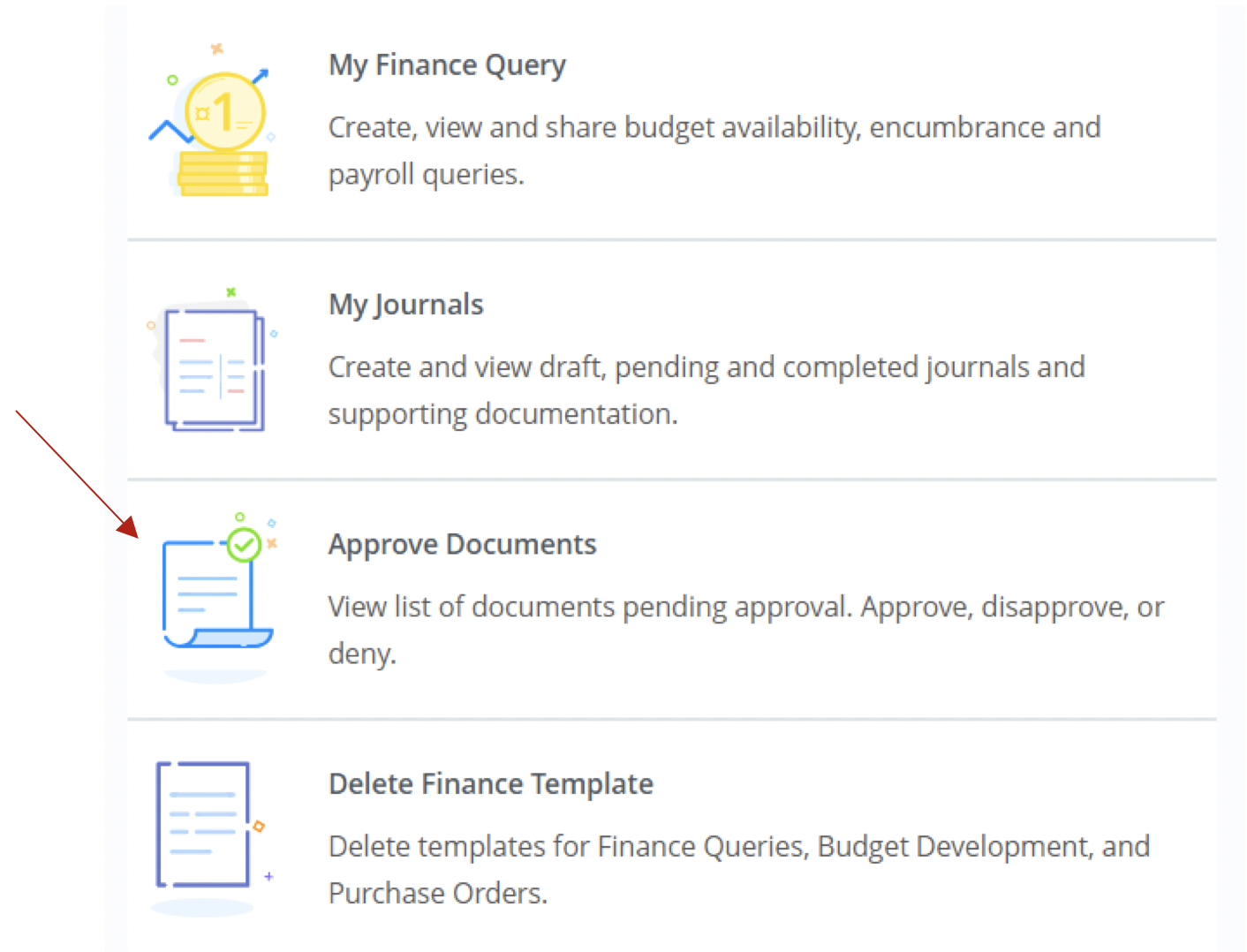
Select Finance Dashboard
Select Approve Documents
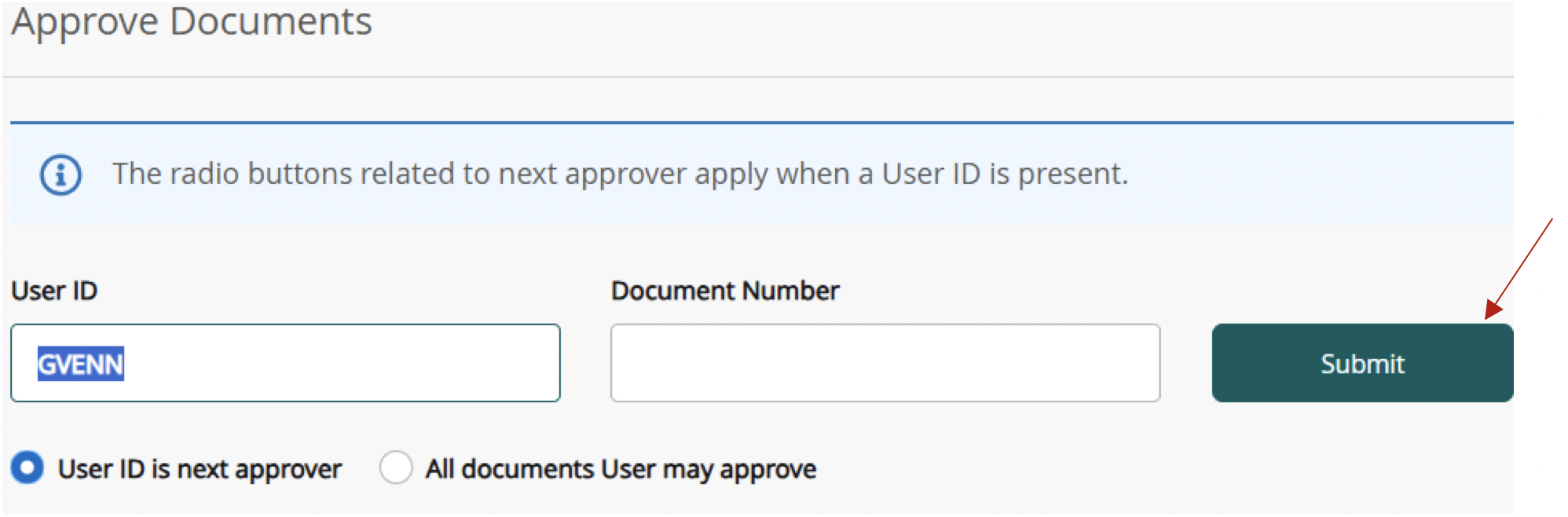
In your next screen your name will automatically populate
Select Submit
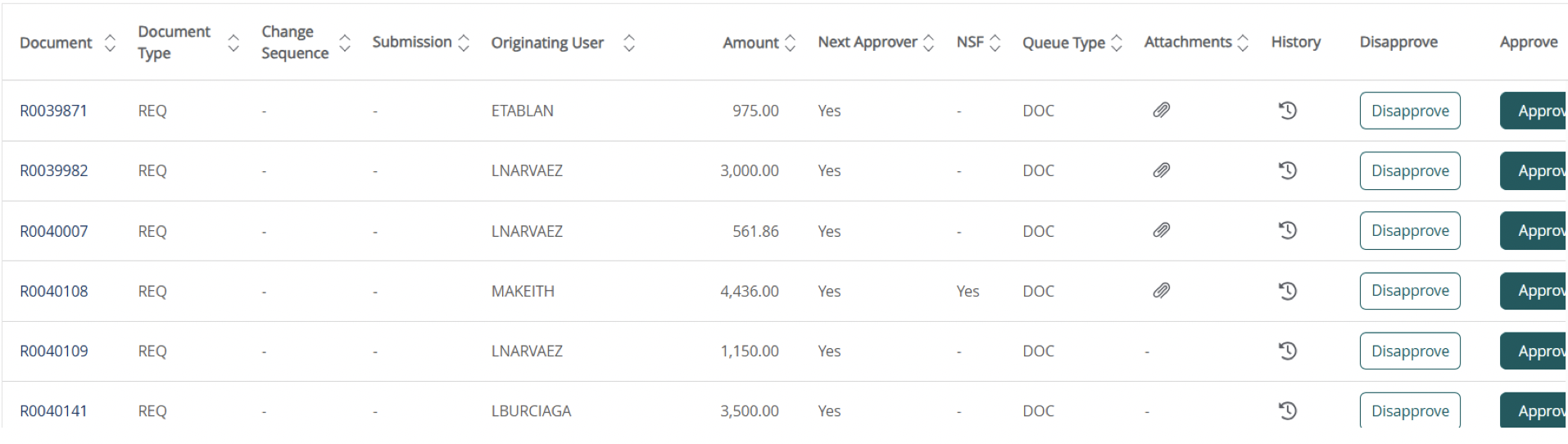
Here you will see all your documents to be approved
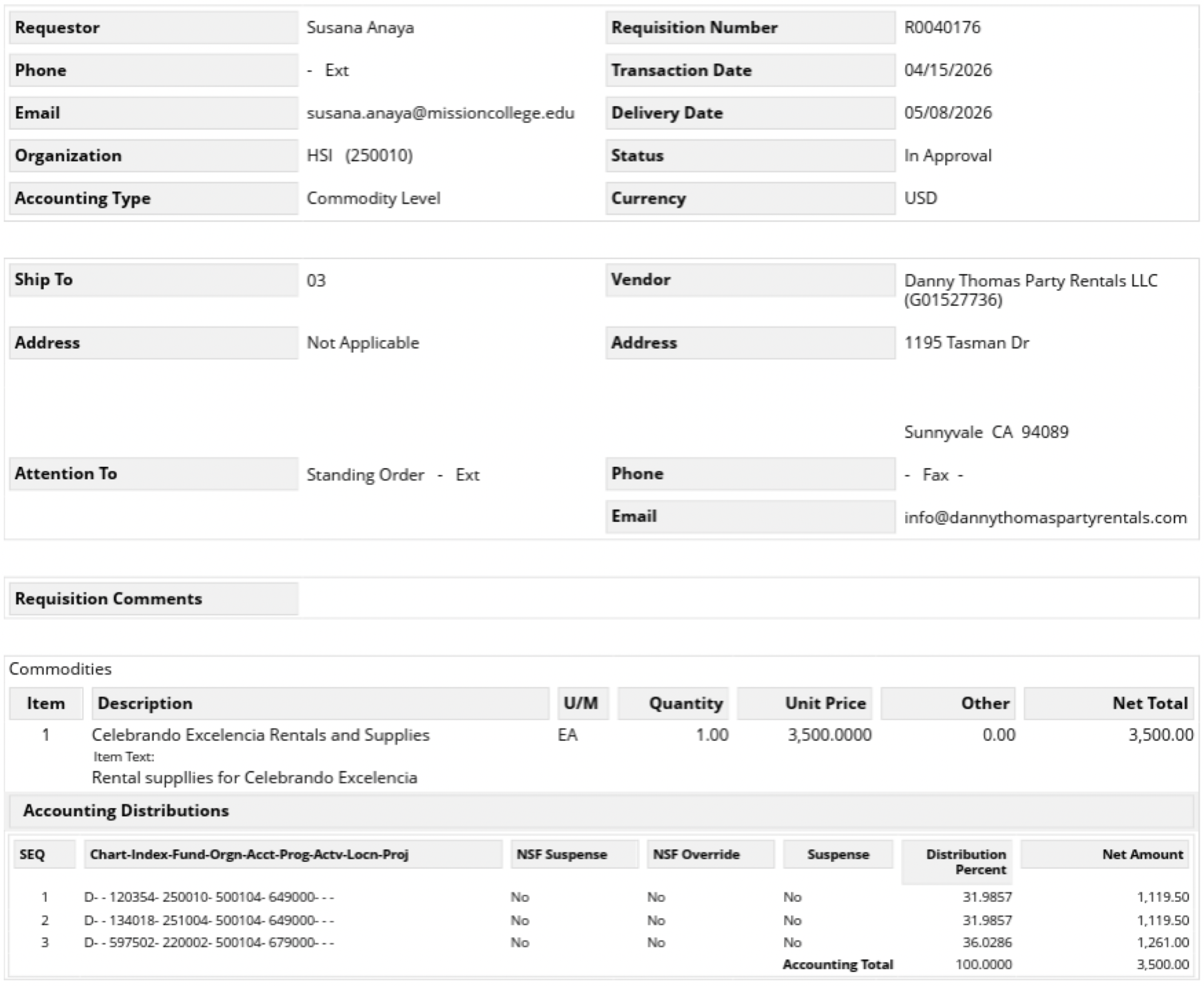
You can select the Document number and will be able to see more details for that document
You can close this screen and return to the previous screen to check for backup documentation
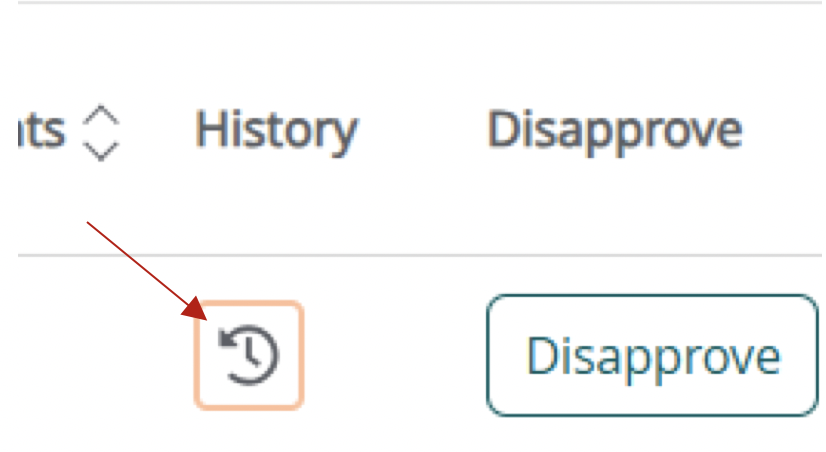
You can select History to see who has approved the document and who needs to approve.
Approvals Required is the next person to approve the document
Approvals Recorded is everyone who has already approved the document
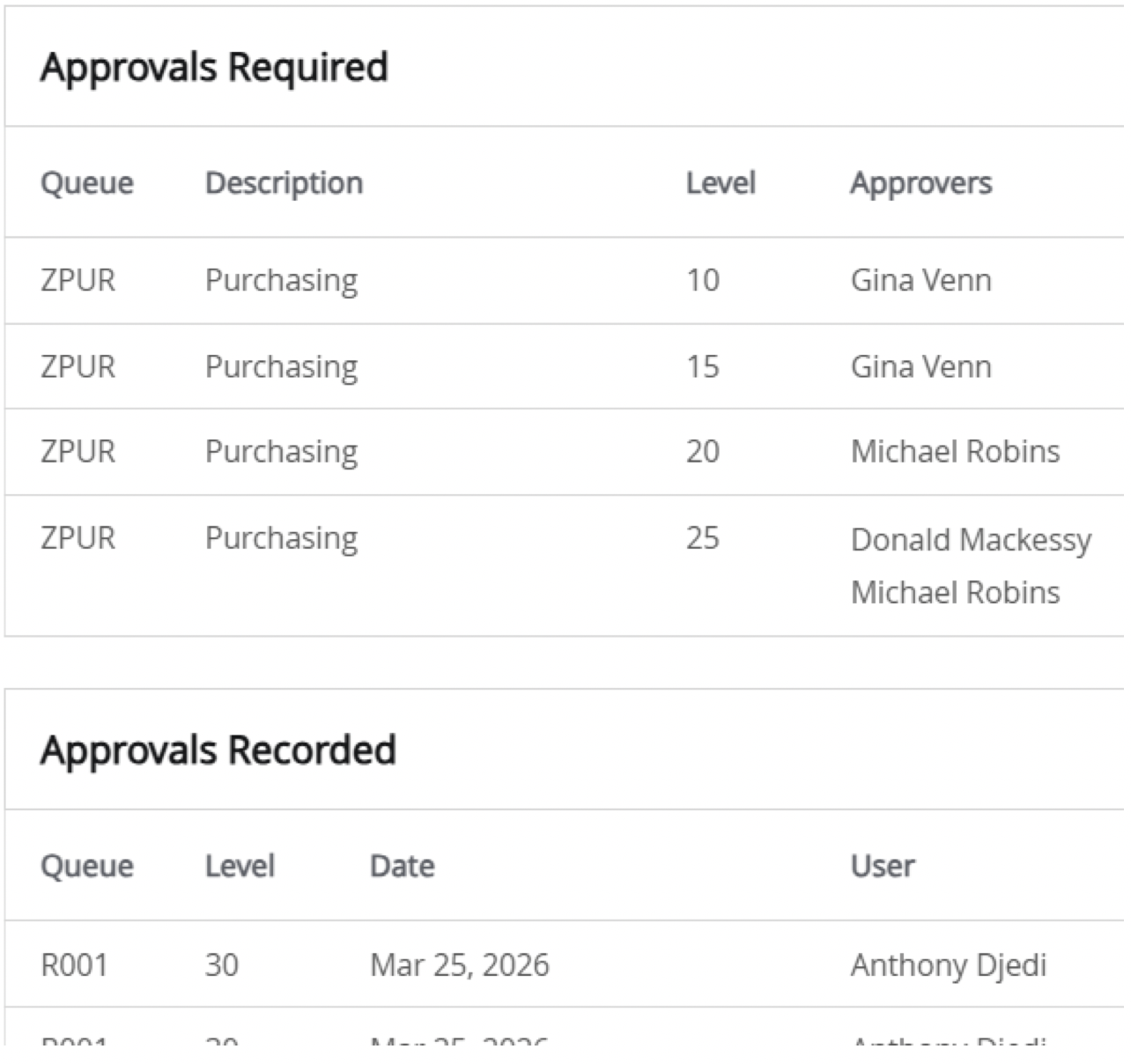
Close this screen to return to your Document screen.
Select the attachment.
- *If the attachment is blank, that means there is no backup documentation.
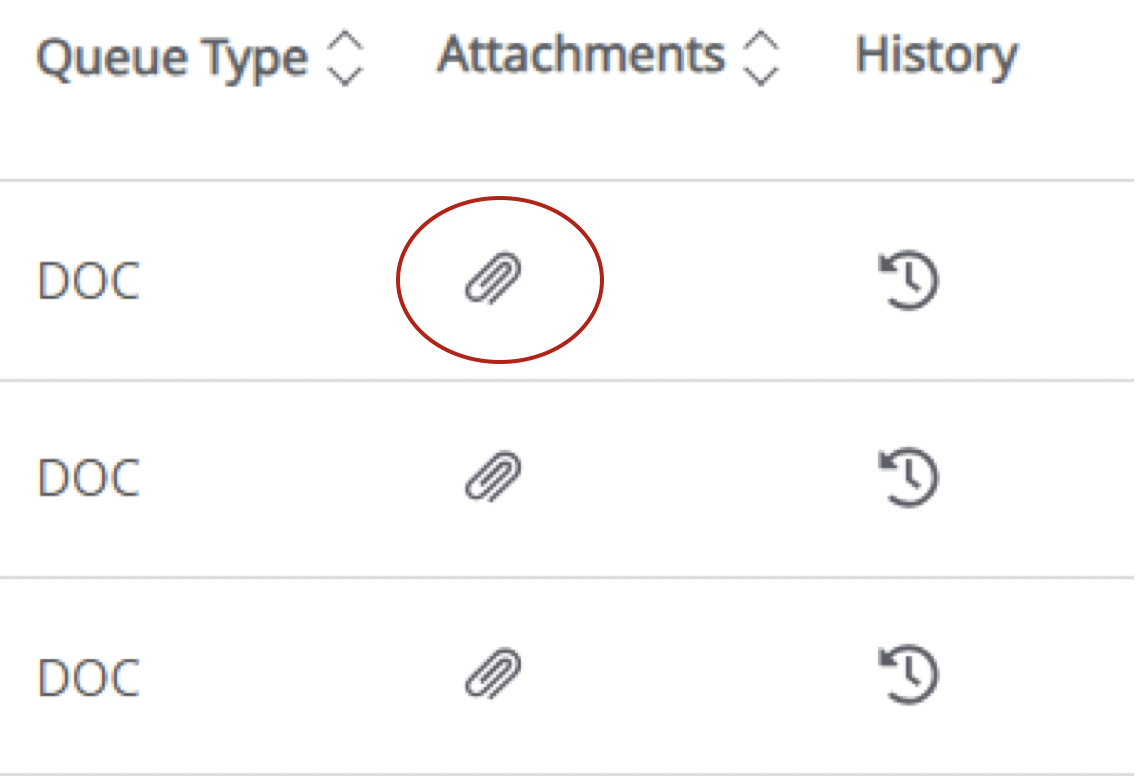
Once you have verified the backup documentation, you can close this screen.
You should be back at the Approver screen and can select Approve on the right side of the screen.
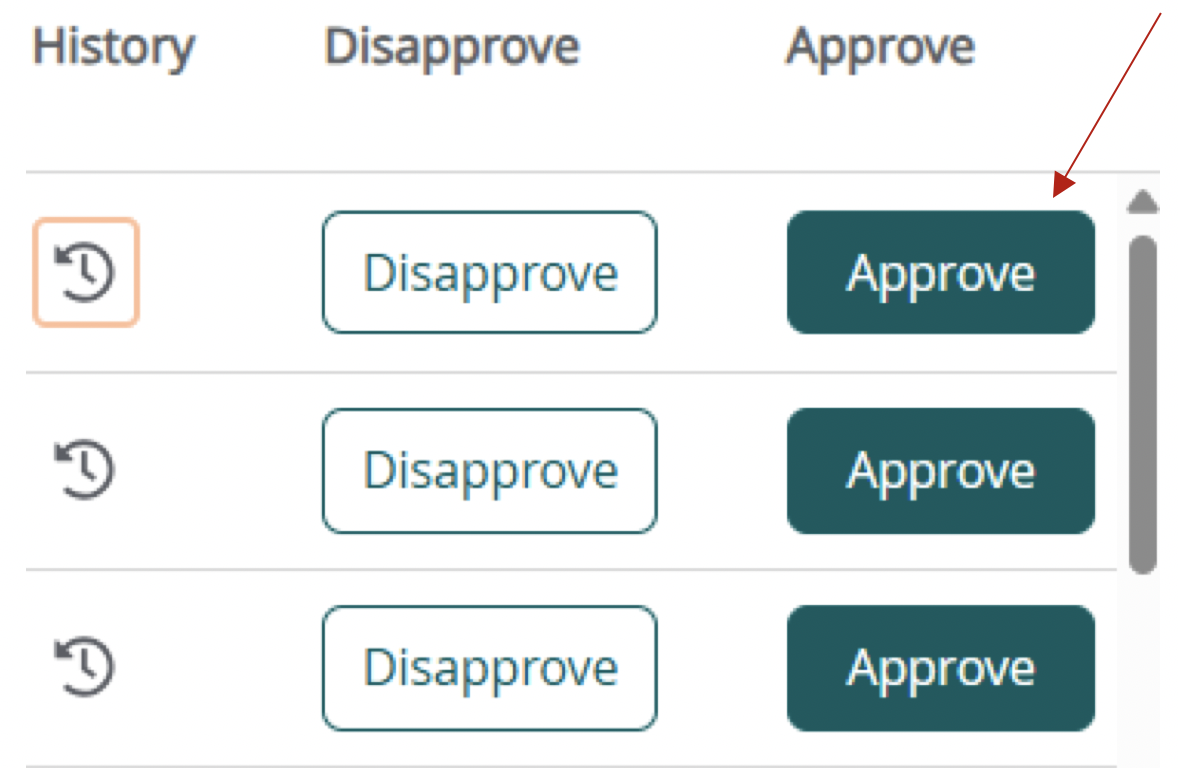
If for some reason you need to Disapprove, selecting this will send the document back to the Requestor/User.
- *The document will need to be rerouted though approvals again if resubmitted.