
Access PlanSource
- Username: Banner ID (G0 + employee ID)
- Temporary Password: Date of Birth (YYYYMMDD)
At first login, create and save a new password.
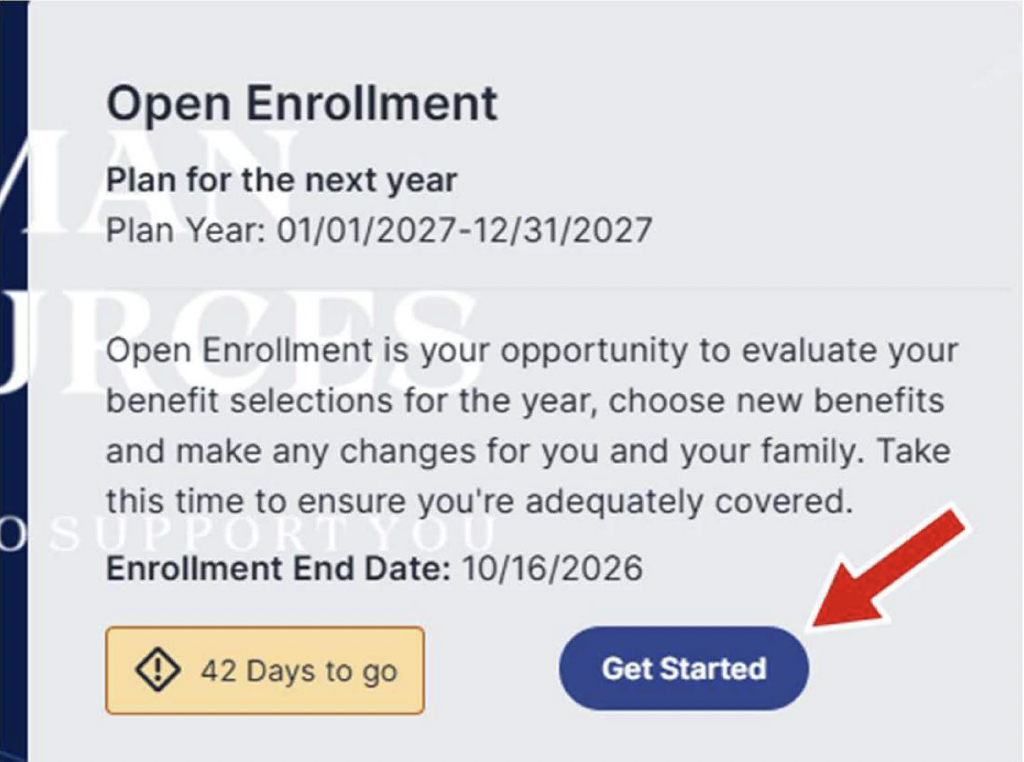
On the Open Enrollment tile, select Get Started.
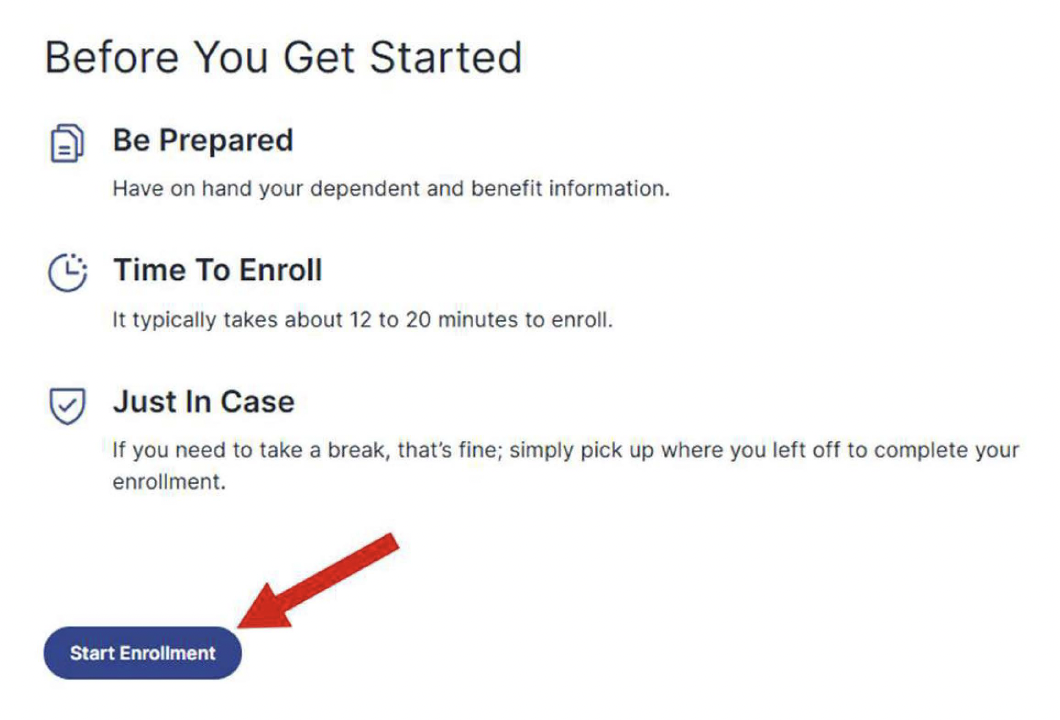
Review Before You Get Started, then select Start Enrollment.
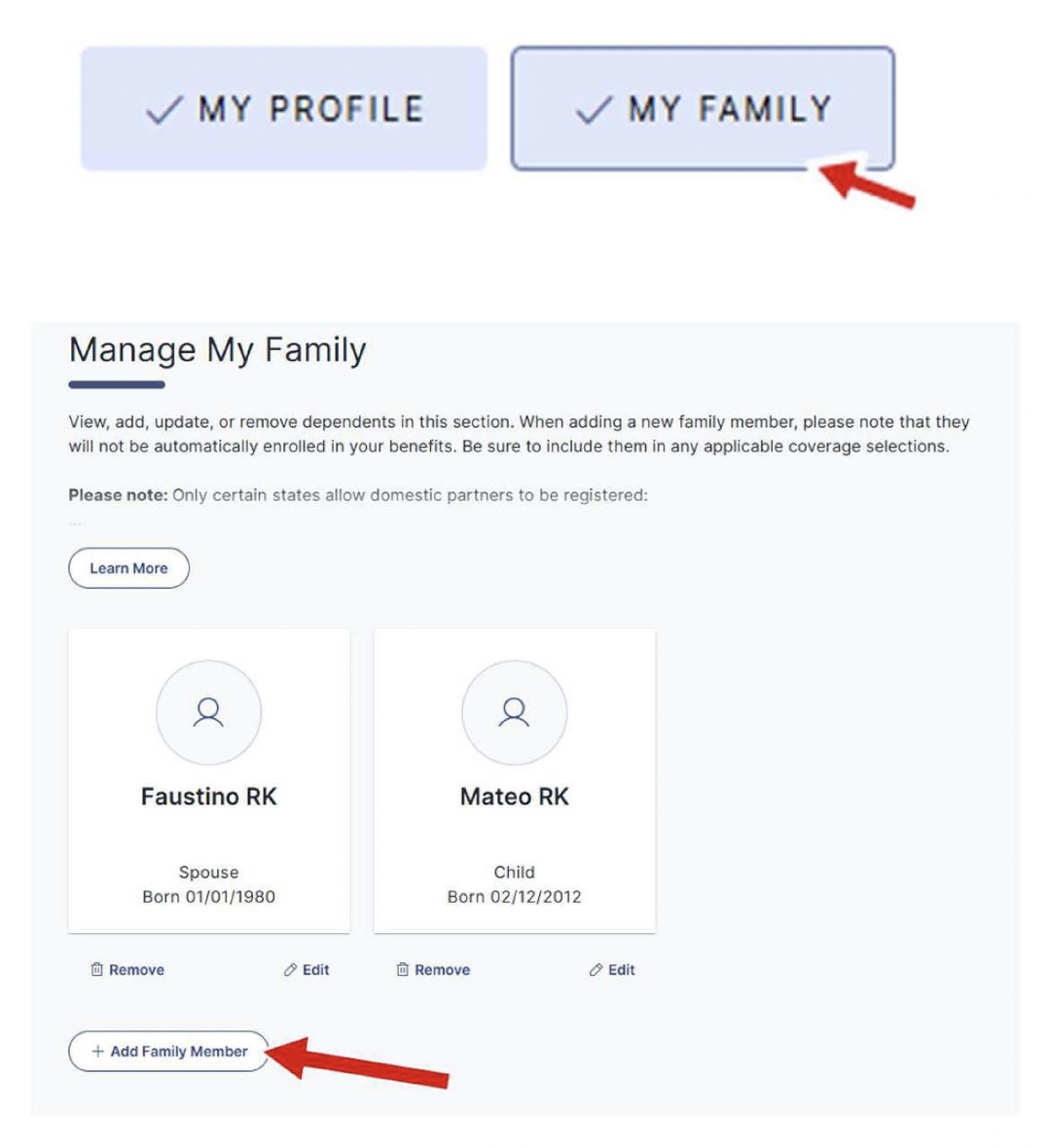
If you are not adding or editing family members, skip to Step 6.
Select My Family.
Review your family members. To add one, select Add Family Member.
Complete all required (*) fields.
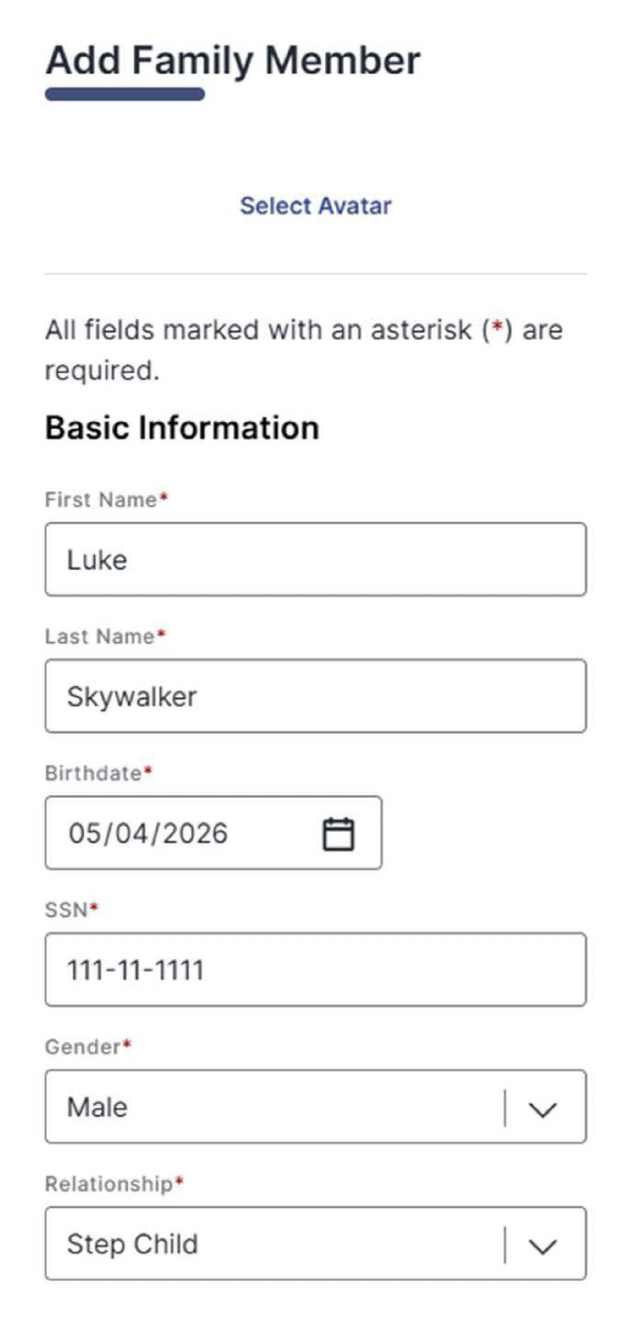
Select Save.
Select Let's Continue.

Select Explore next to each benefit you want to review or change.
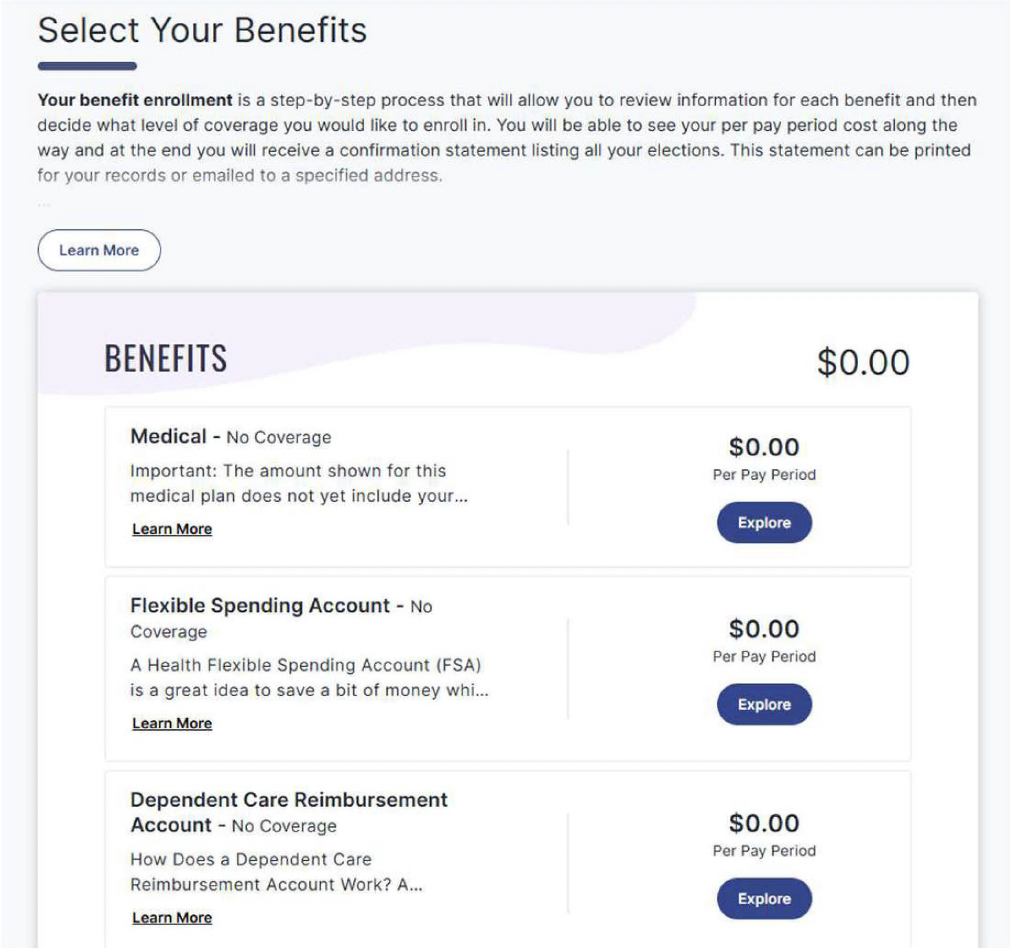
For medical, select each family member you want to cover.
To keep your plan, select Keep This Plan.

To change plans, select Choose Plan next to the new plan.

Review your current election and available options for each benefit.


After making your election, select Looks Good, Continue.

Select the beneficiary box.
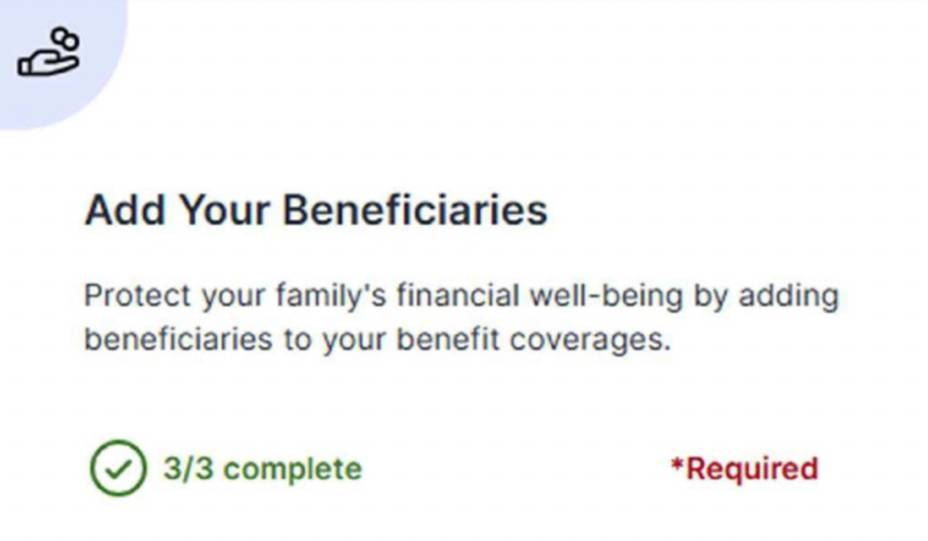
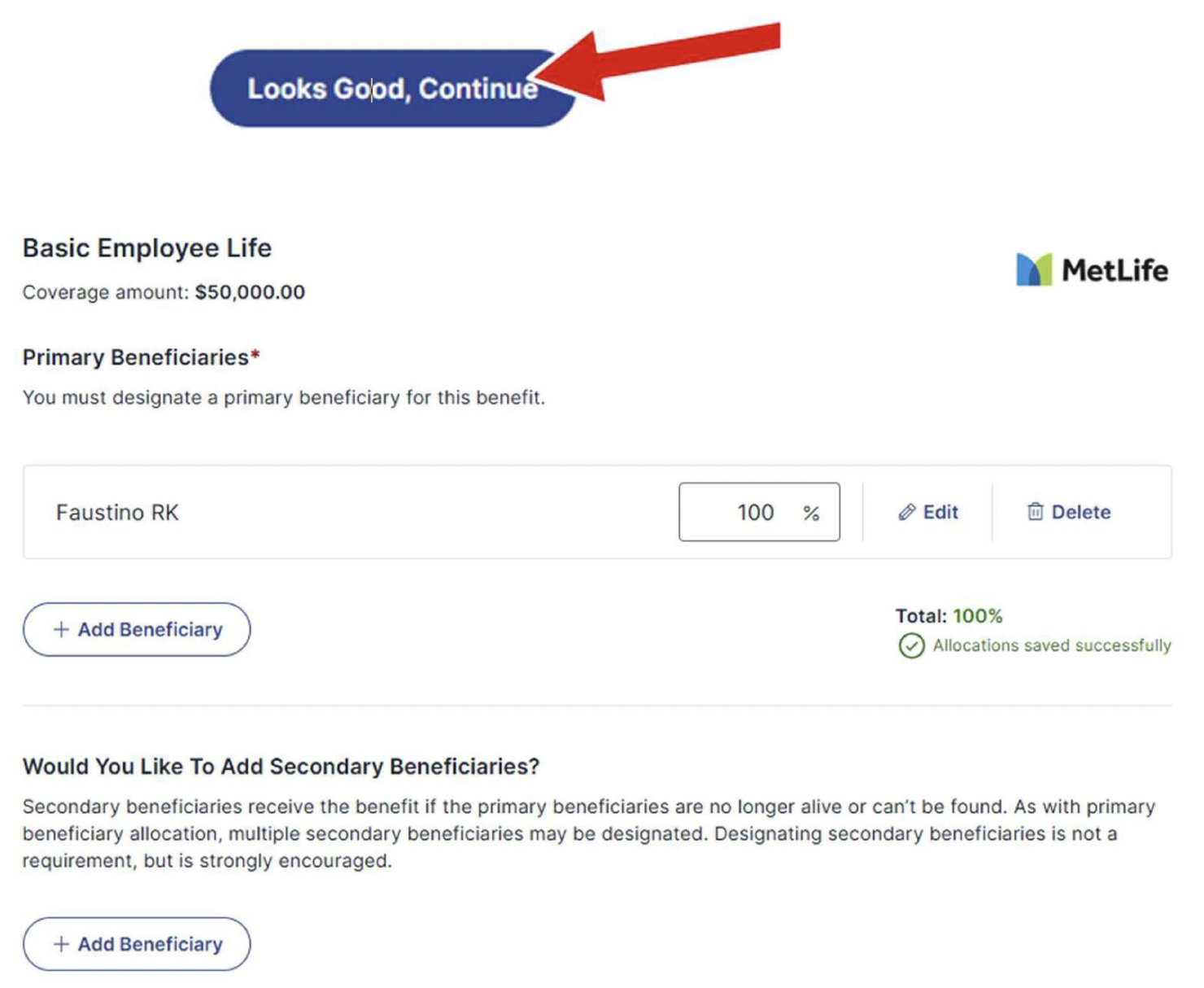
Assign primary beneficiaries. Secondary beneficiaries are optional.
Make sure each category totals 100%.
Select Looks Good, Continue.
Review your benefits and covered dependents
To edit a benefit, select View/ Change.

Select Checkout, then complete the confirmation prompts.

Download or email your confirmation statement. Review it and save a copy.
Review your To Do List for required follow-up.
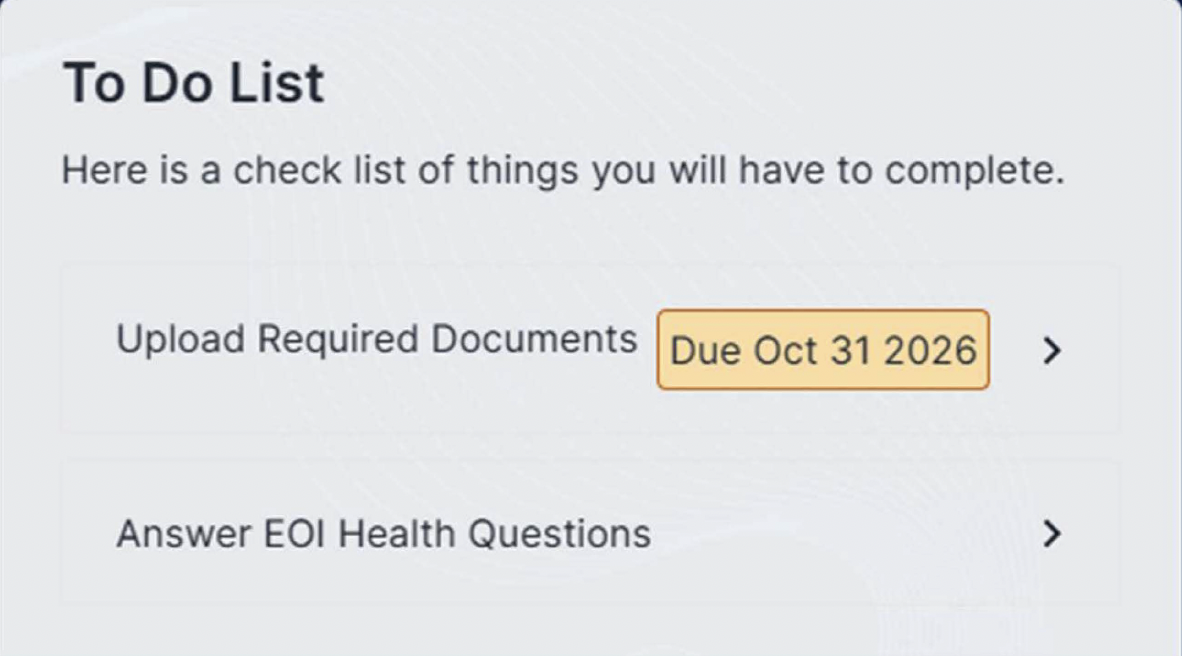
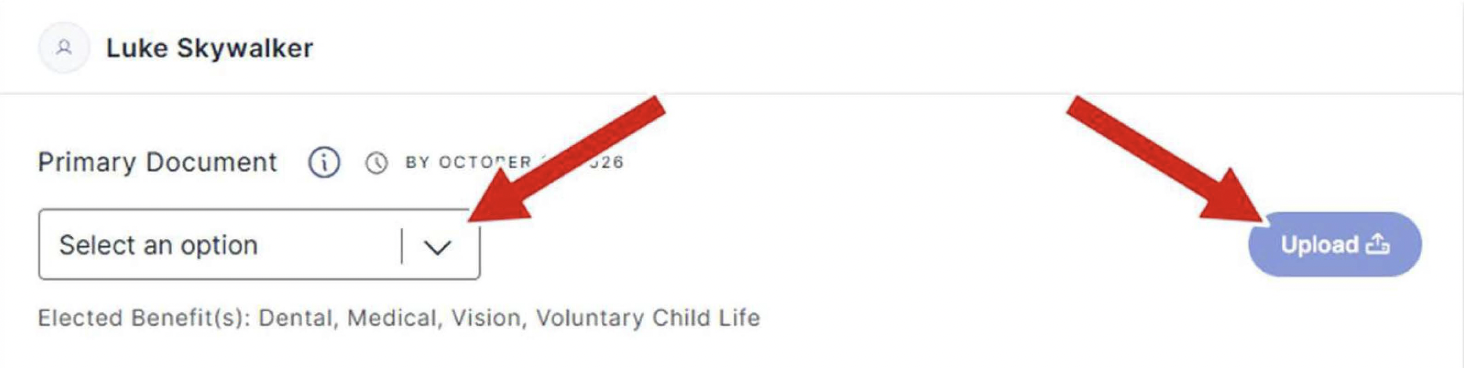
For new dependents, select the document type and upload the required verification by the due date. Repeat for each dependent.
If required, complete the Evidence of lnsurability (EOI) form for new or increased voluntary life or AD&D coverage.
Download Open Enrollment Guide PDF.